Job Actions overview
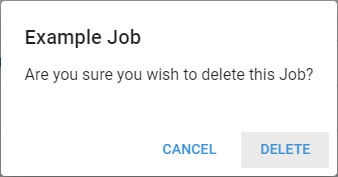
Click the ... on the left side of a row on the Job listing page to open the Actions menu, which collects the ways to modify the selected Job.
Assign Tags
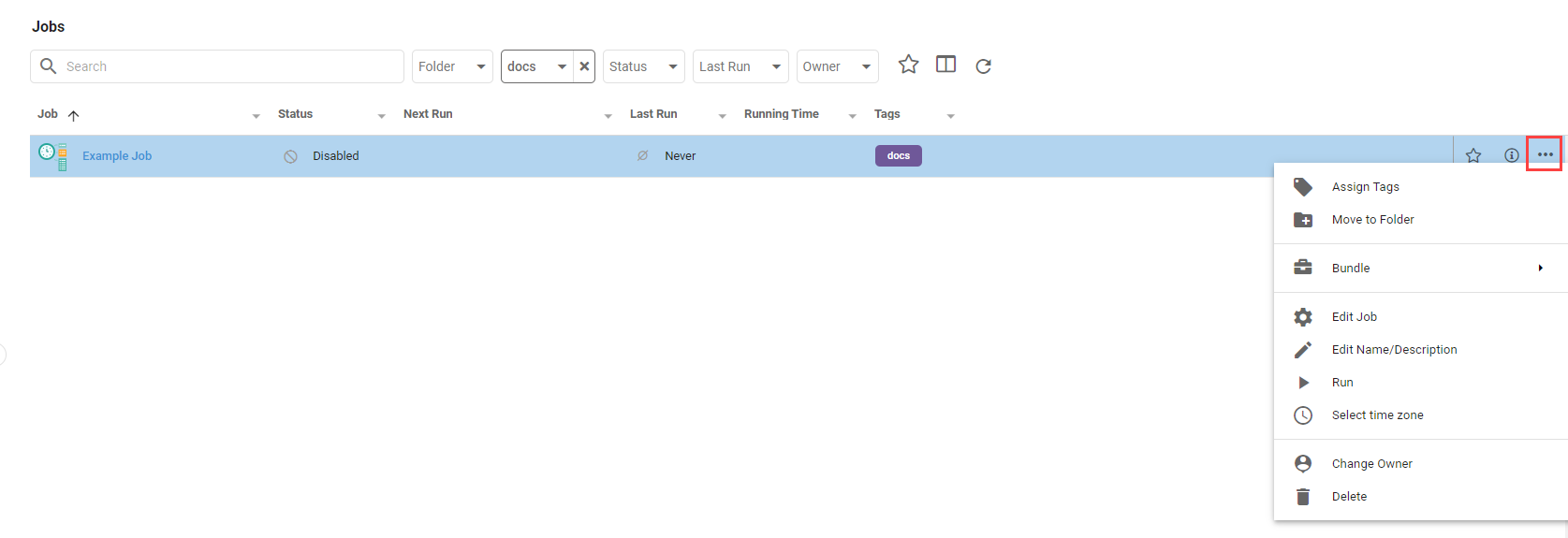
Assign Tags assigns existing tags to a Job. See Organizing content for more.
Move to Folder
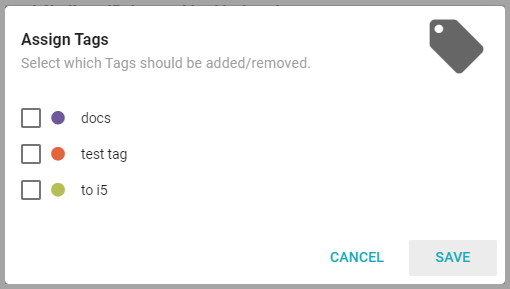
Move to Folder moves the Job to a new or existing folder.
Bundle
Bundle has options to:
- Add to Bundle: add the selected Job to an existing or new Bundle.
- Bundle and Download: immediately create a Bundle with the Job and download the file.
- Bundle and Deploy to Tenant: export the Job in a Bundle and import it to one or more Tenants.
Edit Job
Edit Job opens the Job's edit page to make changes.
Edit Name/Description
Edit Name/Description changes the Job's name or description.
Run
Run runs the Job. Longer Jobs open a dialog showing that the Job is running and let you run it in the background. A green message appears in the bottom left on success, or a red message with the error on failure. If your organization's Credit poolYour organization’s shared balance of unexpired credits. Everything billable draws from the one pool, and spending always burns the oldest-expiring grant first. is exhausted, the Job does not run and the message reads Not enough credits to run Job 'Nightly Export'. (for a Job named Nightly Export); see Limits and running out. A scheduled run that hits the same limit is skipped rather than counted as a failed attempt, and records Not enough credits to run this job. in the Job's history.
Select Time Zone
Select Time Zone opens a dialog to change the Job's time zone. This affects the formatting, filters, and aggregations of dates in the Job's output.
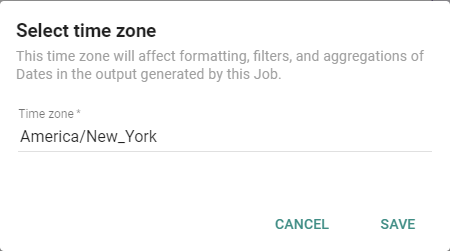
When configuring a Job's time zone, use current IANA time zone identifiers (like America/New_York or Europe/London) or UTC for the most reliable results. Avoid time zone abbreviations (EST, PST), legacy names (US/Eastern, US/Pacific), and custom or regional formats.
Change Owner
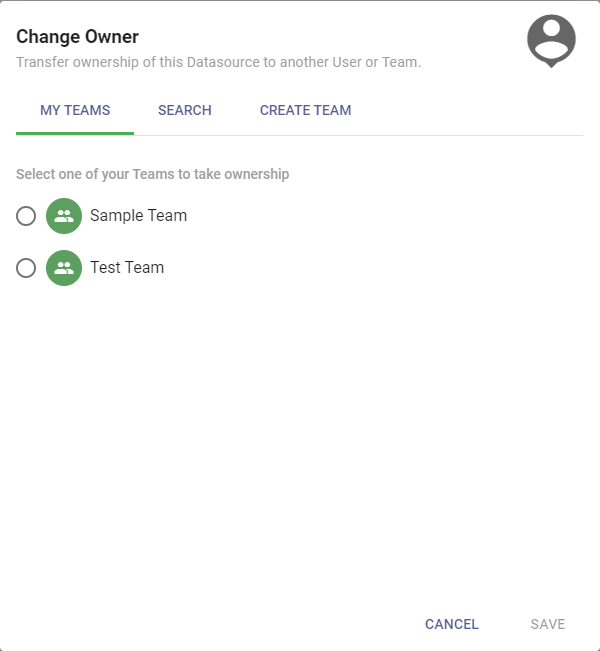
Change Owner opens a dialog to change ownership of the Job to another Team or User.
Delete
Delete opens a dialog that confirms deleting the Job.