Creating a Toolkit
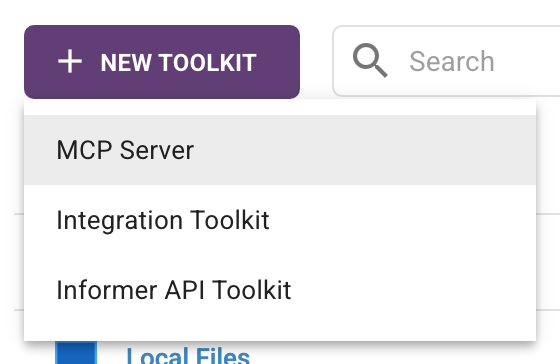
Toolkits are created from the global New menu. Choose Toolkit, then pick one of three starting points: MCP Server, Integration Toolkit, or Informer API Toolkit.
Creating any Toolkit requires the Data Wizard role and a Pro plan or higher (administrators are exempt). See What you need.
Three fields every Toolkit has
Whichever kind you pick, the dialog asks for the same three things:
- Name: the display name, shown in lists and in the Choose Toolkits dialog.
- Slug: the identifier that prefixes every tool this Toolkit contributes, so
zendeskpluscreateTicketreaches the AI aszendesk_createTicket. It must start with a letter and contain only lowercase letters, numbers, and underscores. Check the Slug on the Toolkit's detail page after creating it, and edit it there if it is not what you want. - Description: optional, and worth writing. It is context for the humans choosing the Toolkit, not instructions for the AI. For that, see AI Instructions.
MCP Server
"Connect to a Model Context Protocol (MCP) server by pasting its configuration."
This path is built around copy and paste rather than a form. If you already have an MCP server configured in VS Code, Claude Desktop, Cursor, or a similar tool, paste that configuration and Informer works out the rest.
- Paste the configuration
Drop the server's JSON into the Configuration JSON box. Informer accepts the shapes those tools already use: a VS Code
serversblock, a Claude or CursormcpServersblock, or a bare object with just aurlor acommand. - Parse & Configure
Informer reads the configuration and decides which kind of Toolkit you meant. A
urlproduces a remote Toolkit that runs on the Informer server; acommandproduces a local one that runs on your machine through the Informer GO desktop app. If it cannot find either, it says so rather than guessing. - Name it and create
Fill in Name, Slug, and Description. The parsed Command or URL is shown back to you read-only, so you can confirm Informer understood the configuration before you commit to it.
A remote MCP server that requires authentication is paired with an IntegrationA connection from Informer to an external service such as Google Drive, Gmail, or Salesforce, used by Apps, chats, and jobs to act on your behalf., which holds the OAuth credentials. You can select an existing Integration during creation, or add one later from the Toolkit's detail page.
A local (command) Toolkit cannot report its tools at creation time, because nothing has run it yet. Its detail page reads "This Toolkit must be used at least once in Informer GO to discover available Tools." That is expected, not a failure.
Integration Toolkit
"Create an Integration Toolkit with API request Tools that you define."
Use this when the service you want has an ordinary HTTP API and no MCP server. Instead of pasting a configuration, you author each tool yourself.
The creation dialog asks for Name, Slug, and Description, plus two choices specific to this kind:
- Integration: optional, and the usual way to handle credentials. Picking one lets your tools issue requests through that Integration's authentication instead of embedding secrets in a script. If no Integrations exist yet, the dialog tells you so and lets you add one later.
- Share my credentials: whether other people using this Toolkit act with your connection to the Integration, rather than being asked to connect with their own.
The button reads Create & Add Tools, because a new Integration Toolkit has no tools yet. Informer takes you straight to its detail page to write the first one. See Custom tools.
Informer API Toolkit
"Create Tools that call Informer's internal API, authenticated as the current user."
This one points AI at Informer itself, which makes it the most powerful and the one worth the most thought. It arrives with its tools already built in, so there is nothing to author.
Alongside Name, Slug, and Description, the dialog offers Read Only. Leave it on and the Toolkit can only call read-only API routes; turn it off and it can create, update, and delete. You can change this later from the Toolkit's API Access panel.
The key safety property is that an Informer API Toolkit acts as the person using it, not as its creator. Their permissions, roles, and row-level access all still apply, so it can never reach data that person could not open themselves. Read Only narrows that further, from "everything you can do" to "everything you can see".
Because a single Informer API Toolkit can be aimed at a specific job, it is normal to have several: one read-only Toolkit for questions about your data, another that can build Reports, each with its own AI Instructions describing what it is for.
Troubleshooting
- The Toolkits item is missing from the navigation. AI is not enabled for the system or for your account. Ask an administrator to check your AI access.
- Creation is refused with "Creating toolkits requires a Pro plan or higher". Your AI plan is below Pro. Administrators bypass this check; everyone else needs the plan.
- "Could not find a valid MCP server configuration." The pasted JSON has neither a
command(for a local server) nor aurl(for a remote one). Copy the whole server block, not just its arguments. - The Slug is rejected. It must start with a letter and use only lowercase letters, numbers, and underscores. No hyphens, spaces, or leading digits.