Adding an Input to Native SQL Queries
Because Native SQL Queries do not use the Query Designer, they need to reference an Input's alias directly inside the SQL statement to use its value as Criteria.
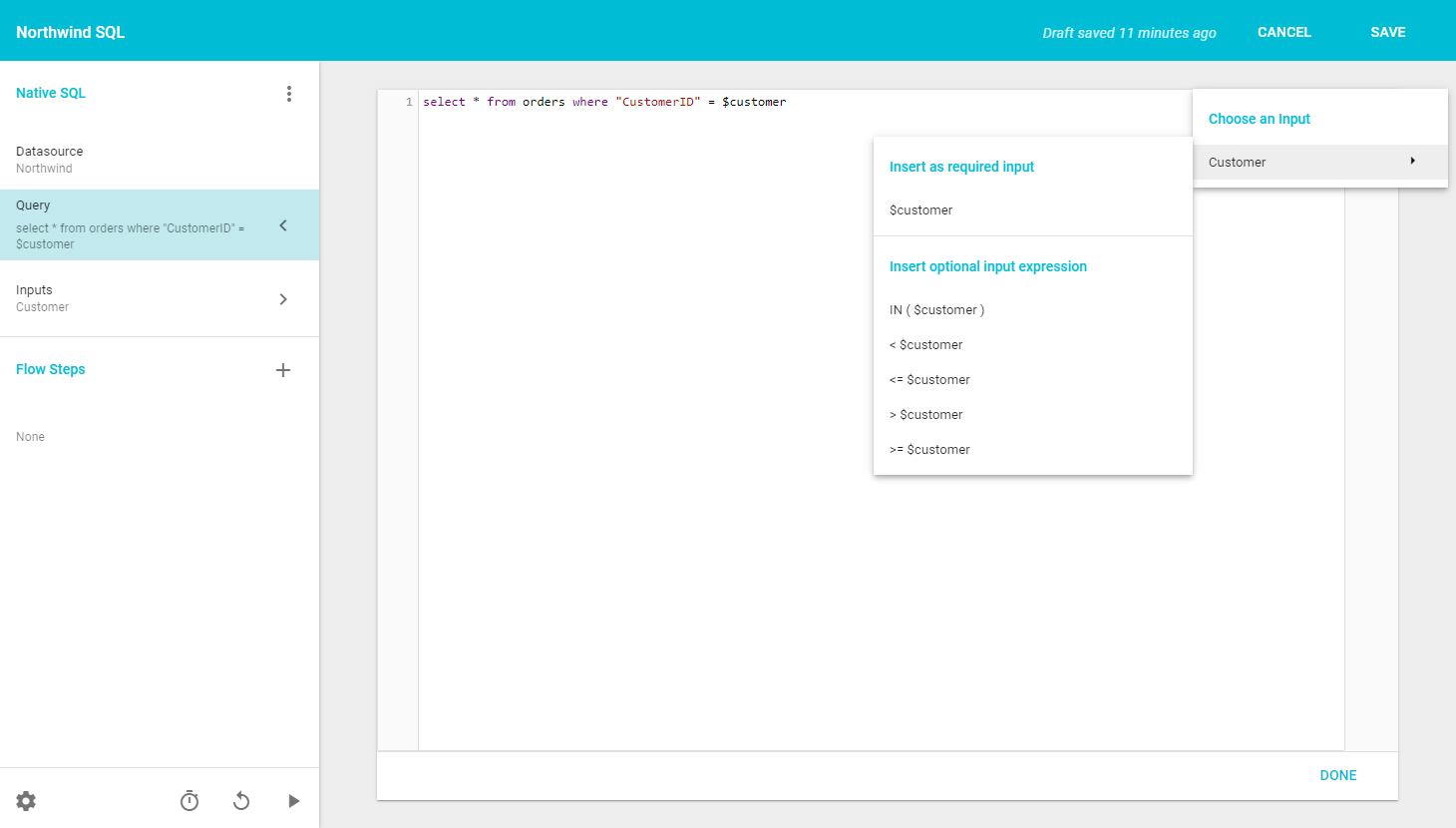
To find the alias for an Input, either open that Input's configuration page or click the Insert Input button on the right side of the code editor, which lists all the Inputs configured on the Query. Hovering over an Input name shows a secondary menu with logic syntax options. Clicking any of them pastes the correct code snippet, including the Input's alias, into the editor.
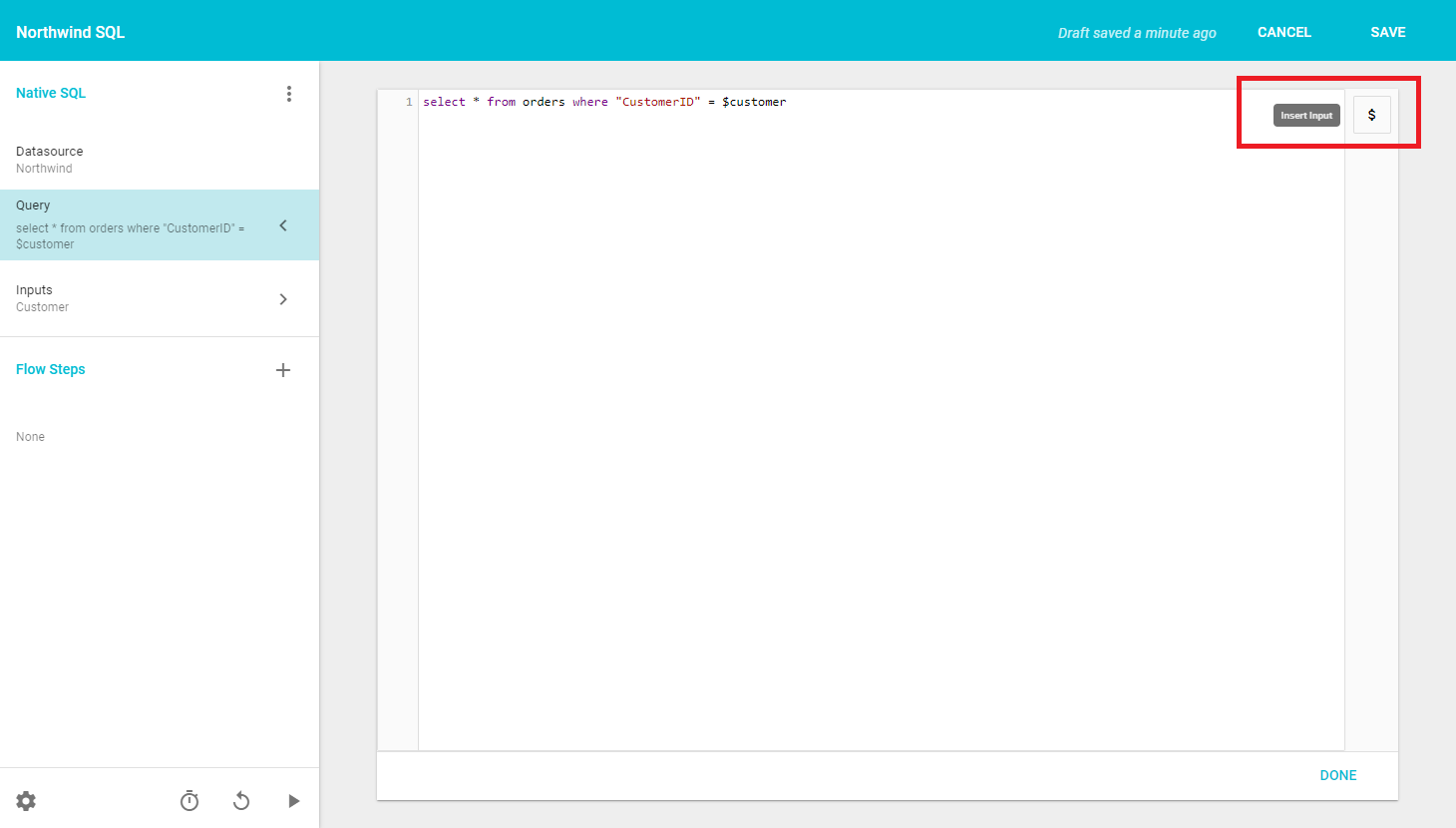
Informer does not parse Native SQL Queries to detect syntax elements such as comments. It takes the user-supplied Query string, looks for any $input strings, converts the $input references to a standard parameter reference (producing a prepared-statement-like Query string), then sends the converted Query and Input values to the database.
A Query breaks if Inputs are provided and a commented-out $input reference is in the Query string. If Informer passes a parameter to a Query that does not need one, the Query fails.
In addition to common logical operators like greater than, less than, or equal to, there are syntax options for when an Input has multiple, separate values, or is optional.
The IN( $input ) option inserts this snippet:
( $input.0 IS NULL OR IN ( $input ) )
Put the field name the criterion works on between the OR and the IN. For example, for a criterion matching records against a CustomerID Field where the Input allows multiple or optional values:
select * from orders where ( $input.0 IS NULL OR "CustomerID" IN ( $input ) )
Referencing a Date Range Input
Some Inputs collect more than one value. A Date Range Input collects a start and an end, and it has no single value of its own, so referencing it by its bare alias does not work. Reference each part instead, written as the Input's alias, two underscores, and the part name:
select * from orders where "OrderDate" between $orderDate__start and $orderDate__end
The Insert Input button lists each part of a Date Range Input as its own entry (an Input labelled Order Date with the alias orderDate appears as Order Date: start and Order Date: end), and the snippet each entry pastes already references that part, such as $orderDate__start.
Referencing a User Field
A Native SQL Query can also read the running User's User Fields, so one Query returns different rows for different people, the same way a User Field Criterion does in the Query Designer. Reference a User Field as ${user.<name>}, where <name> is the User Field's name:
select * from orders where "SalesRegion" = ${user.region}
The Insert User Field button, below Insert Input on the right side of the code editor, lists every User Field defined in the system along with the built-in User attributes (username, display name, email, time zone, super user, and enabled), and pastes the reference for the one you choose. Typing ${ in the editor offers the same list as autocomplete. When no User Fields have been created, the menu shows No User Fields available.
When the Query runs, each reference is replaced with the running User's value for that User Field, or the User Field's default value when the User has none. A User Field that holds several values expands to a comma-separated list, so compare it with IN ( ${user.region} ) rather than =. A reference to a name that is not a User Field, such as ${user.regon}, stops the Query with an error naming the unknown reference, so a typo cannot silently run a broken statement.
Default values and blank Inputs
A default value fills an Input in when the run prompt opens. The end user sees it and can accept it, change it, or clear it. A Date Range Input has a separate default for its start and its end, so either side can be filled in on its own.
Whatever is left in the Input is what runs. Clearing a value runs the Query with no value for that Input rather than putting the default back. The prompt's Reset button is different: it rebuilds the Inputs and fills the default values back in.
An Input left blank is passed to the database as null, and a plain comparison against null matches nothing:
-- returns no rows when the Date Range is left blank
select * from orders where "OrderDate" between $orderDate__start and $orderDate__end
To make an Input genuinely optional, write the comparison so it tolerates null. Every reference to an Input becomes its own parameter, so an alias can appear more than once:
select * from orders
where ($orderDate__start is null or "OrderDate" >= $orderDate__start)
  and ($orderDate__end is null or "OrderDate" <= $orderDate__end)
Left blank, that Query returns every Order. Filled in on one side only, it bounds the results on that side alone.
The Insert Input button's optional syntax options build this pattern for each part of a Date Range Input as well. Choosing >= on Order Date: start pastes ( $orderDate__start.0 IS NULL OR >= $orderDate__start ); put the Field name before the comparison operator, the same way as the IN example above.