Creating an Informer Datasource
The Informer Datasource lets Informer report on itself: who is using data, how it is connected, and what is happening in the system. It is most useful with the Query and Request Audit features, so Superusers can build Datasets and Reports of what users are doing in Informer.
Create the Datasource
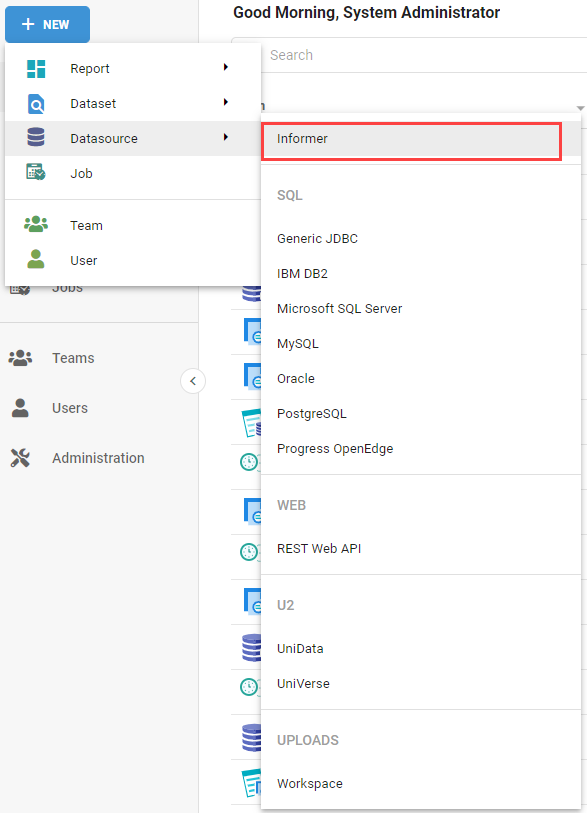
- Click New and select Datasource.
- Select Informer.
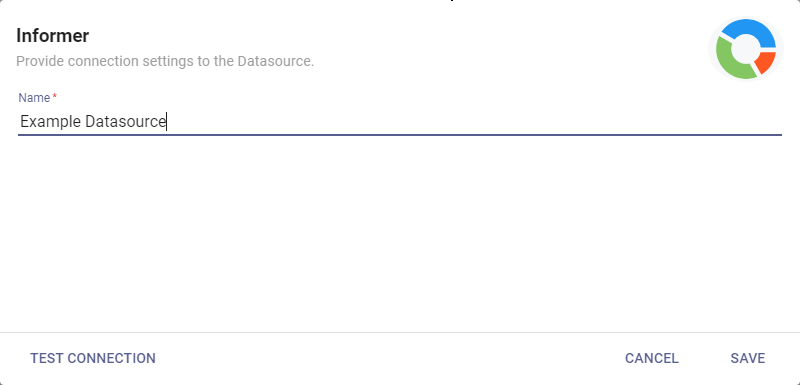
- Enter a name for the Datasource.
- Click Test Connection to confirm Informer is connecting to itself.
- If it succeeds, click Save.
The Informer Datasource is tenant-specific and does not expose data from other tenants.
Set a query timeout
Queries against the Informer Datasource are cancelled once they run past a time limit, so one expensive query cannot occupy the server indefinitely. The Statement Timeout (milliseconds) field on the connection panel sets that limit, and it applies to every query against the Datasource, Scans included.
Leave the field blank to use the default of 300000 milliseconds (5 minutes). To change it, enter a value between 1000 and 3600000 (1 hour).
There is no way to turn the timeout off. 3600000 (1 hour) is the longest a query against this Datasource can run, so work that needs more than an hour has to be narrowed rather than waited out.
Order Desk runs a nightly audit Report across roughly 1.5 million rows of query history. At the 5 minute default the Report fails partway through, so they raise the timeout to 1800000 (30 minutes) and it completes.
To change the timeout later, open the Datasource, click Connection, edit the field, and click Save.
Troubleshooting
- A Report, Dataset refresh, or Scan fails with
canceling statement due to statement timeout: the query ran past the limit. Raise Statement Timeout (milliseconds) on the Datasource's connection, or narrow the query so it returns fewer rows. - Save and Test Connection are greyed out after editing the timeout: the value sits outside the allowed range. Enter a number between 1000 and 3600000.
Scan the Datasource
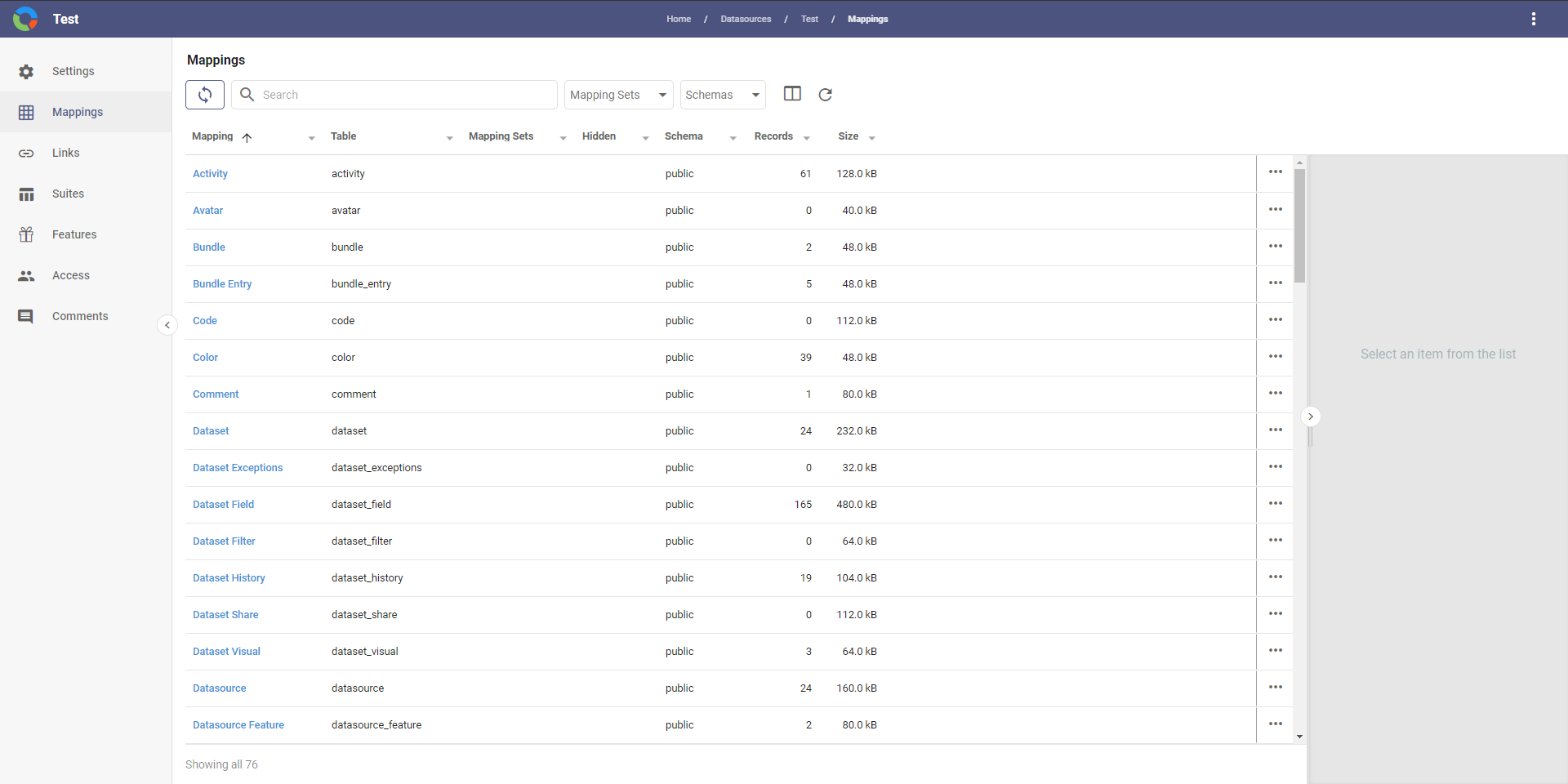
After saving, Informer opens the Datasource's Mappings page. Click Scan Datasource and run a Full Scan to bring in all the Mappings and their Fields.
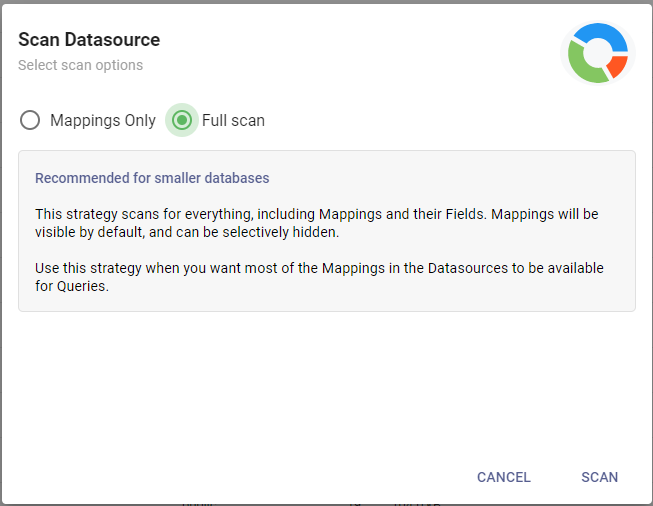
A Full Scan may take a few minutes. Click Run in Background to keep using Informer while it runs.
The Informer Datasource is then populated with the deployment's Links, Mappings, and schema, and can be used like any other Datasource. It is required to build Datasets and Reports from Audit Logs.
Only the Dataset Designer can create a Dataset from an Informer Datasource.
Prebuilt Links and Queries
Entrinsik publishes a Bundle of Links and Queries built on the Informer Datasource, so a scanned Datasource has content to start from. Import the Bundle that matches your Informer version.
Attachments
- Informer 5.9.0 Links and Queries
- Informer 5.10.x Links and Queries
- Informer 2025.2.x Links and Queries