Creating a SQL Datasource
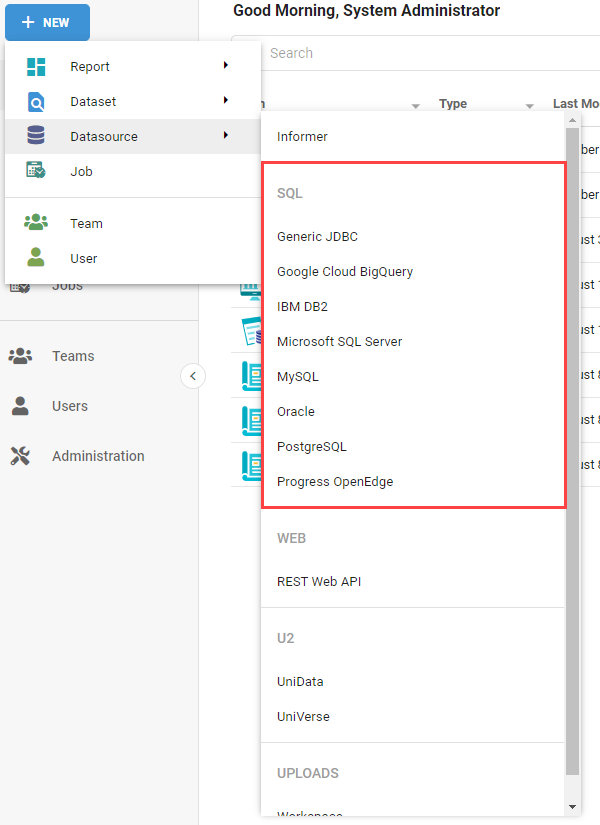
To connect Informer to a relational database, create a SQL Datasource. From the Datasource listing page, click New Datasource and choose a SQL database type.
Connecting
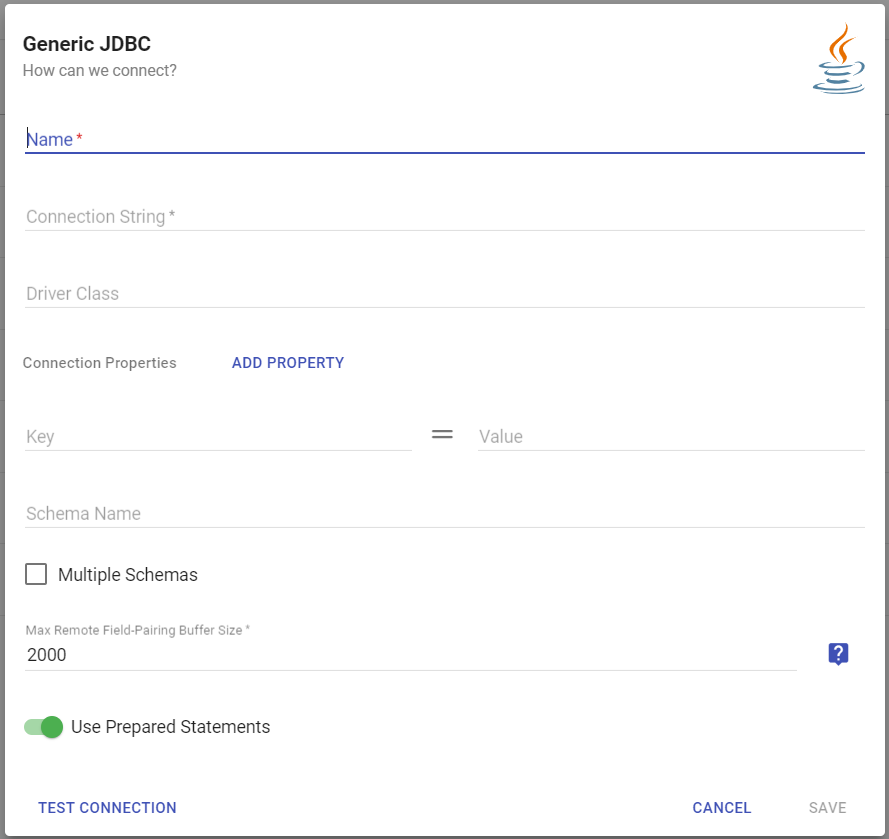
Select the database type, and a connection form appears with fields specific to that type. A Generic JDBC Datasource can connect to any database that has a compatible JDBC driver installed on the Informer server (see Installing JDBC drivers).
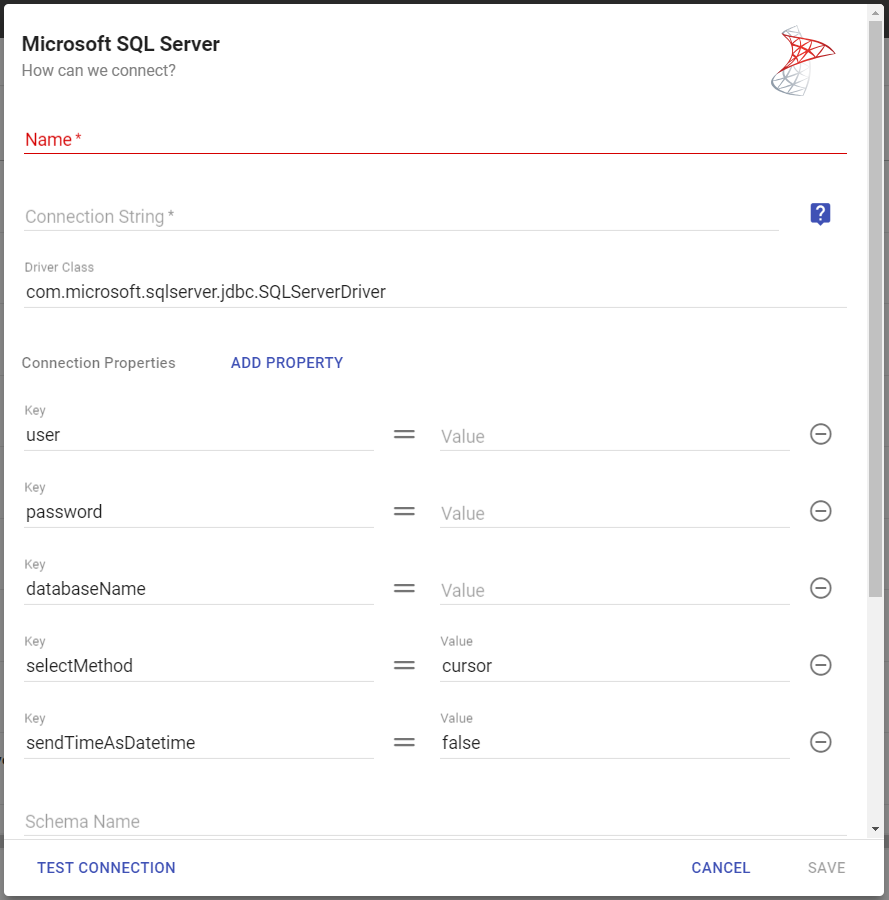
The common fields across SQL types are:
- Name: a name for the Datasource.
- Connection String: points to the database, including the connection type, server, and port, for example
jdbc:driver://localhost:1433. - Driver Class: the Java class for the JDBC driver. For SQL Server it defaults to
com.microsoft.sqlserver.jdbc.SQLServerDriver. - Connection Properties:
- user / password: the credentials to connect with.
- databaseName: the database name. This is case-sensitive; a non-matching case will not scan.
- selectMethod: mostly affects performance. The default,
cursor, is usually best. - sendTimeAsDateTime:
trueorfalse(defaults tofalse). - encrypt: set to
falseto disable TLS. For a Microsoft SQL Server Datasource, setencrypt = trueto enable encryption (it defaults tofalse). For a Generic JDBC Datasource connecting to SQL Server,encryptis not set tofalseby default, so the driver behaves as if it weretrue; setencrypt = falseexplicitly to disable encryption.
- Schema Name: the schema, if any. MySQL has no schema, so it defaults to the database name.
- Multiple Schemas: check this if there are several schemas, then use Add Schemas.
- Transaction Isolation Level: defaults to Read Uncommitted, so queried records are not locked.
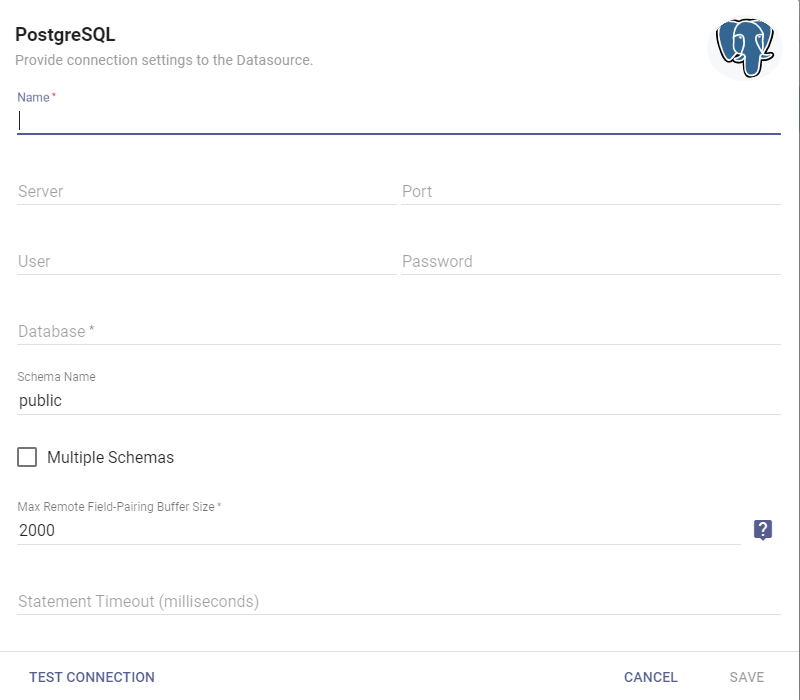
Other types, like PostgreSQL and MySQL, use a simpler form with Server, Port, User, Password, and Database fields.
Generic JDBC options
A Generic JDBC Datasource has a few unique fields:
- Connection String: the base connection string Informer uses, for example
jdbc:sqlserver://servername:1433. - Driver Class: the Java class for the JDBC driver (from the driver's documentation).
- Use Prepared Statements: enable or disable prepared statements (enabled by default).
- Connection Properties: Key/Value pairs appended to the connection string. Drivers typically need
username,password, anddatabaseName; some need more. Click Add Property for each pair.
When connecting to Snowflake via Generic JDBC, add the connection property CLIENT_METADATA_REQUEST_USE_CONNECTION_CTX with a value of true. Without it, Snowflake searches your entire account for metadata during a scan instead of just the connected database, which can cause scan failures and slow performance.
Authenticating with an Integration
Instead of a stored password, a Generic JDBC Datasource can authenticate with the access token of an Integration. Under Authenticate with an Integration, choose one of two options:
- Use an existing Integration: pick from the Integrations that can authenticate right now. Those use the OAuth2 (in the shared connection mode), Bearer Token, API Key, or Token Exchange authentication type and, for OAuth2, have already been connected by their owner. Per-user OAuth2 and Basic Auth Integrations are not offered, since the token would change with whoever is asking. If you cannot view an Integration that someone else attached, the field shows a placeholder for it; you can still keep, replace, or clear it.
- Define one for this Datasource: fill in a one-off Integration that belongs to this Datasource alone. It always uses the shared connection mode, offers only the authentication types above, is never listed with the other Integrations, and is removed with the Datasource. After saving, connect it from the Datasource settings.
Then set Access Token Property: the JDBC connection property (case sensitive) that receives the token, for example token (Snowflake), accessToken (SQL Server), OAuthAccessToken (BigQuery), or Auth_AccessToken (Databricks). Informer sets this property from the Integration each time it connects, replacing any same-named entry under Connection Properties. Leave any password out of the Connection Properties; the token takes its place.
For Snowflake, set authenticator to oauth under Connection Properties and use token as the Access Token Property, per Snowflake's JDBC connection parameters. Key pair authentication is the other password-free option; see JDBC Key Pair Authentication.
On the Datasource settings page, the Integration row in the connection section shows the Integration's state as a dot: green when it can authenticate, amber when it is not connected yet, red when it can no longer supply a token. Hover the dot for the Integration's name, status, and the token's authorized and expiry times. Connect or Reconnect opens the Integration's authorization in a popup, for anyone who may edit the Integration; an existing Integration also gets a shortcut to its own page.
Test Connection dials with the Integration's token. For an Integration defined in the dialog and not saved yet, it reports that the Datasource must be saved and its Integration connected first.
After entering the details, click Test Connection to verify, then save. Then scan the Datasource to bring in its Mappings and Fields. See Scanning a Datasource.
For connection properties per database, see the vendor documentation: Microsoft SQL Server, Oracle, MySQL, PostgreSQL, IBM DB2, Progress OpenEdge, and Snowflake.
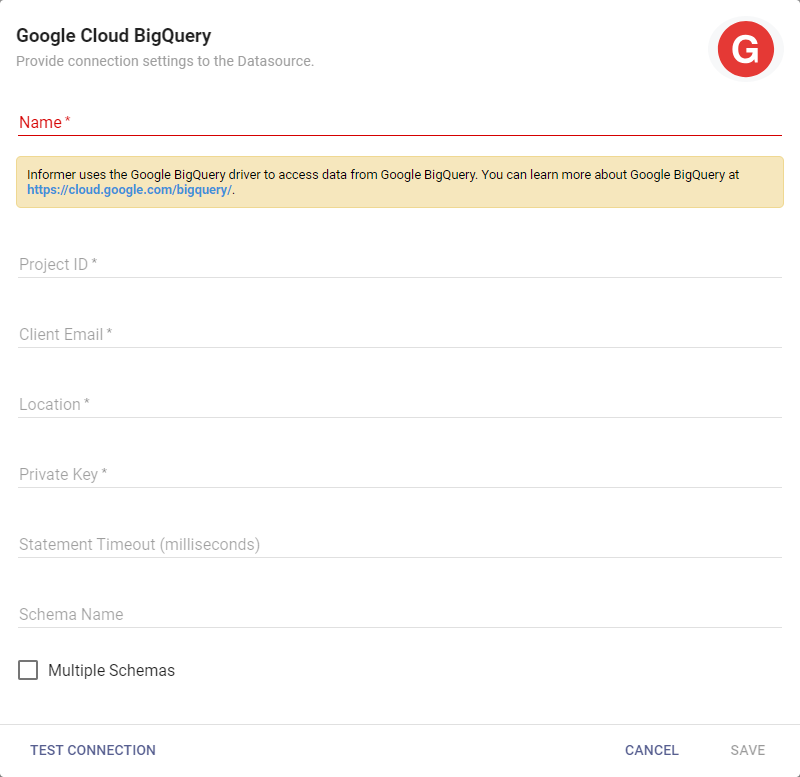
Google Cloud BigQuery
Google Cloud BigQuery is a serverless data warehouse, and connecting to it needs different information. First download a key as JSON from a Google Cloud service account, then open it in a text editor to get the values.
In Informer, click + New, select Datasource, then Google Cloud BigQuery. Give it a name, then copy the Project ID, Client Email, Location, and Private Key from the key file into the matching fields. Add any optional information (Schema Names, a Timeout), then click Save.