SSH Tunnels
A Secure Shell (SSH) tunnel allows networking data to travel over an encrypted SSH connection. This is one method Informer uses to connect a cloud Tenant to an on-premise server. This plugin, installed on informer.cloud, provides self-service options for Users to create a secure tunnel to a local server.
How an SSH Tunnel connects Informer.Cloud to your network
Three components work together to make the connection, and knowing which is which makes a failed tunnel much easier to diagnose:
- The Informer.Cloud frontend. The Informer user interface and application server running in the cloud. When a User runs a Query or creates a Datasource, this is the side that needs to reach your database.
- Datahub, the SSH server. Informer.Cloud runs an SSH server at
datahub.informer.cloud. It is the cloud-side end of the encrypted tunnel and receives the connection. - The SSH client on your network. A client you run on-premise, either the Docker container or PuTTY on Windows, which opens the encrypted tunnel back to Datahub and carries traffic on to the local database server.
Traffic flows from the Informer.Cloud frontend to Datahub, across the tunnel the local SSH client opened, and on to the on-premise database. Every hop between the cloud and your network is encrypted, so database credentials and query results are never in the clear.
SSH Tunnel listing page
Navigate to the SSH Tunnel listing page from Administration by clicking SSH Tunnels in the left menu.

This page contains a table of active SSH Tunnels, their Datahub ports, and their local server name and port.
Creating a new SSH Tunnel
Click the + New button at the top of the SSH Tunnel listing page or, if no active SSH Tunnels exist, click the New Tunnel button to begin creating a new tunnel. The New SSH Tunnel dialog has three required fields:
- Name: A description of the tunnel that helps Users easily understand the connection.
- Local Server: The hostname or IP address of the on-premise database server, as seen from the machine running the SSH client. A fully qualified domain name (
database.company.local), a plain hostname (proddb01), and an IP address (192.168.1.50) all work. What matters is that the SSH client can reach it. - Local Server Port: The port the database itself listens on, not the SSH port. Common defaults are
1433for SQL Server,5432for PostgreSQL,3306for MySQL, and1521for Oracle.
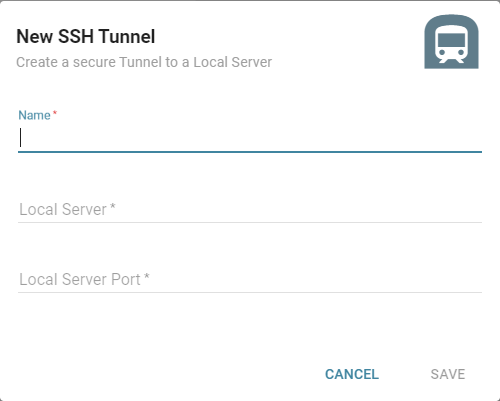
Click Save after entering all of the required information. Informer creates a new SSH key pair, encrypts the private key, stores it in the database backing the SSH Tunnel list, and signs a certificate. The certificate is what allows the SSH Tunnel to authenticate Users and grant them access to Informer.
Connecting an SSH Tunnel
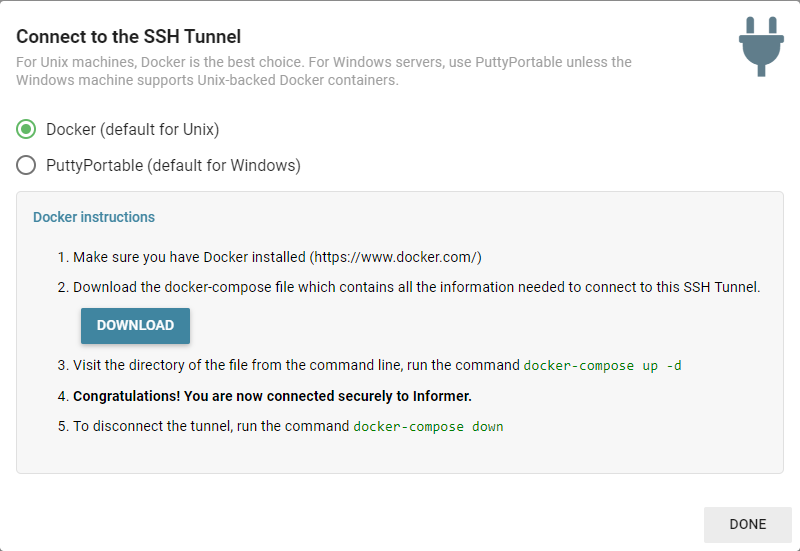
Once a User creates an SSH Tunnel, they must connect to it. Click the Connect button at the end of the row for the desired tunnel to open the Connect to the SSH Tunnel dialog, which provides basic instructions.
Linux with Docker
For Informer deployments running on Linux, Docker is the best and default choice. Ensure that Docker is installed; if not, visit the Docker website to install it. Connect to the SSH Tunnel using Docker:
- Click the Download button in the Connect to the SSH Tunnel dialog to download the necessary
docker-compose.ymlfile. This file contains all of the environment variables needed to connect to the SSH Tunnel. - Run the following command in the command line of the file's directory:
docker-compose up -d
- Back in Informer, ensure the connection is successful. See Testing the connection below for more information.
Windows with PuttyPortable
Windows deployments of Informer use a pre-configured PuttyPortable zip file to connect to the SSH Tunnel.
- Click the Download button in the Connect to the SSH Tunnel dialog to download the
puttyportable.zipfile. - Open the folder containing the file and extract its contents.
- Run the extracted
PuTTYPortable.exefile to open the PuTTY Configuration window. - Select datahub.informer.cloud from the list of Saved Sessions, then click Load.
- After the session briefly loads, click Open.
- Back in Informer, ensure the connection is successful. See Testing the connection below for more information.
Alternatively, after downloading and extracting the puttyportable.zip file, Users can run the following command from the Windows command line to achieve the same results as steps 2-5:
PuttyPortable.exe -load datahub.informer.cloud
Testing the connection
After connecting to an SSH Tunnel, Users should test the connection in Informer using a test Datasource.
- In Informer, click the + New button and select the type of Datasource connected to the SSH Tunnel.
- Enter the information using the same credentials as usual, but enter the following for the server and port:
- Server: datahub.informer.cloud
- Port: The Datahub Port found on the SSH Tunnel listing page.
- Click the Test Connection button at the bottom of the dialog.
- If the connection is successful, a green message appears in the bottom left of the Informer window.
- If the connection is not successful, a red error message appears in the bottom left of the window. Ensure that all of the information is correct and that Informer is still connected to the SSH Tunnel, then try again. Contact Informer support if additional assistance is needed.
- After a successful test, click Cancel at the bottom of the Datasource dialog to close it.
Note: It is not recommended to save the test Datasource. Only proceed far enough to test the connection.
Closing the connection
Closing the connection to the SSH Tunnel ends the flow of data between the server and informer.cloud.
- Linux with Docker: Run the following command from the Docker command line:
docker-compose down
- Windows with PuttyPortable: Close the PuTTY application.
Reconnect to the SSH Tunnel using the same commands and steps as enabling the connection for both Linux and Windows.