About, Backup, and License
The Administration area lets Informer administrators manage system-level settings, features, access logs, and other useful information about the Informer instance. Only Super Users and the local Informer user with the username admin can access Administration.
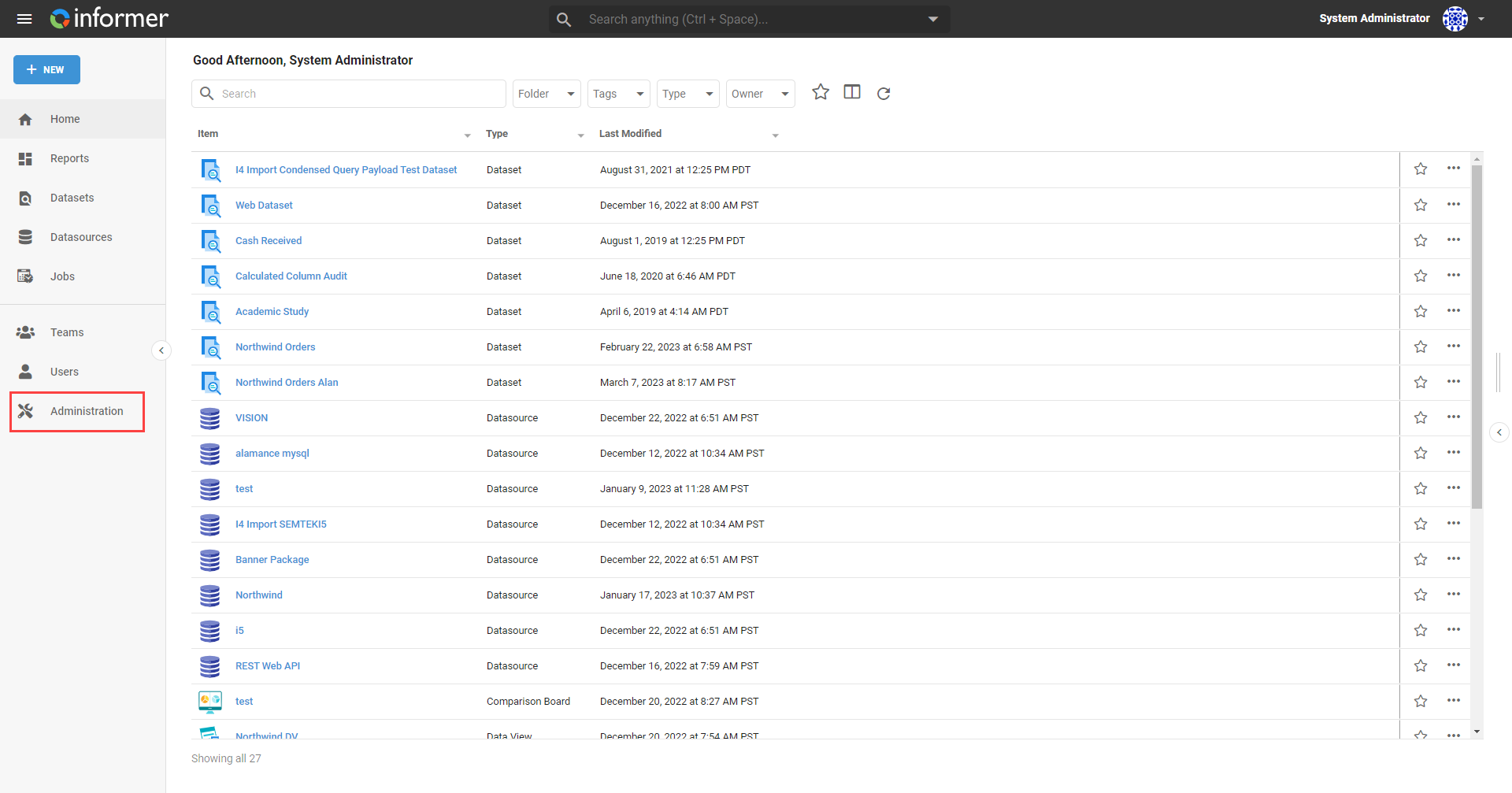
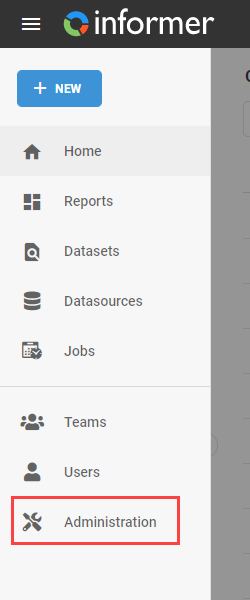
Reach the Administration section using the Administration link on the Home page or the Administration link in the navigation bar in the top-left corner of the application.
The About section at the top of the Settings page contains information on the Informer deployment's build, version, and basic license information, along with the system actions. Below the build number it shows the System ID recorded on the license (None when the license has no System ID), followed by who the deployment is licensed to and through what date.
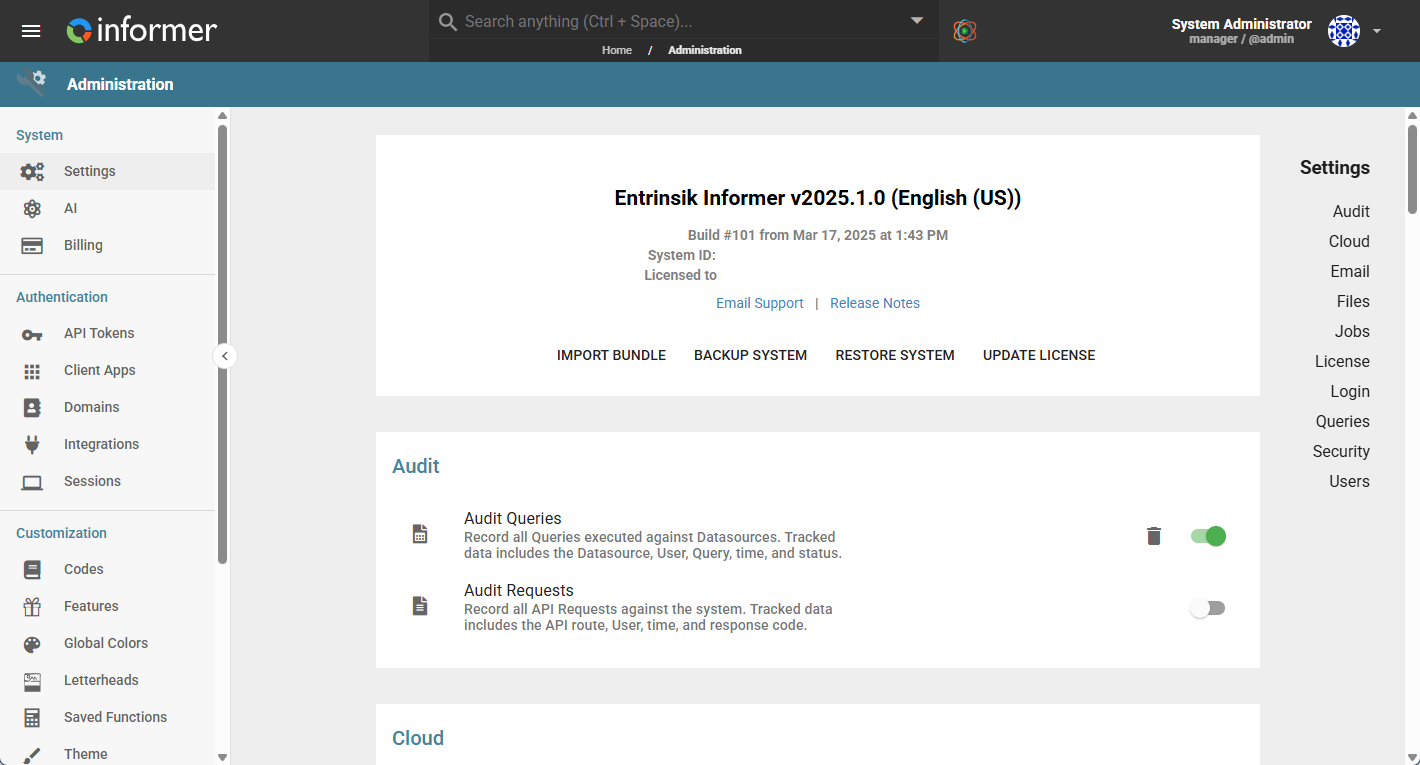
The About section includes two external links:
- Email Support: Opens an email to Informer Support with the subject line automatically populated with Informer's build information.
- Release Notes: Opens the Release Notes on the Informer Help Center.
This section also includes options to import Bundles, back up and restore the system, and update the license.
Import Bundle
Click Import Bundle or drag and drop the file into Informer to import a Bundle. Select the import options during the import process:
- Optionally Import - Choose specific items to include from the Bundle: Teams, Users, Tags, Folders, Domains, and Sharing Rules (Sharing Rules can only be selected together with Teams or Users). Not all items in the Bundle are required for import. Importing Users or Teams preserves their ownership of other content in the Bundle (such as Reports, Datasets, and Datasources). Bundled Users must change their passwords before they can log in, as passwords are not included in Bundles.
- Default Owner - Change the default owner for the content in the Bundle. Leave the default of Me (the User importing the Bundle) or select a User or a Team.
- Update rule for content that has already been imported - Overwrite if newer, Overwrite, or Skip.
- Original Token Secret for Data Re-Encryption - Optional. If the Bundle's data was encrypted with a different Token Secret, enter it here so Informer can decrypt the data before re-encrypting it with this instance's Token Secret.
- Datasources - Choose to merge content with an existing Datasource or create a new one. Use the Test Connection button to ensure Informer is creating the Datasources correctly.
Note: Bundles from a newer version of Informer will not import into an older version. Bundles from an older version of Informer import into a newer version, but there is no backward compatibility.
After verifying that all of the information is correct, click Save at the bottom of the panel to finish importing the Bundle.
Backup System
The Backup System option creates a Bundle of everything held in the Informer instance. Creating this backup can take some time depending on the size of the instance. Once the backup starts, it can run in the background, letting administrators use other resources while Informer creates the backup file.
For backup strategy and tooling, see the database maintenance guides.
Restore System
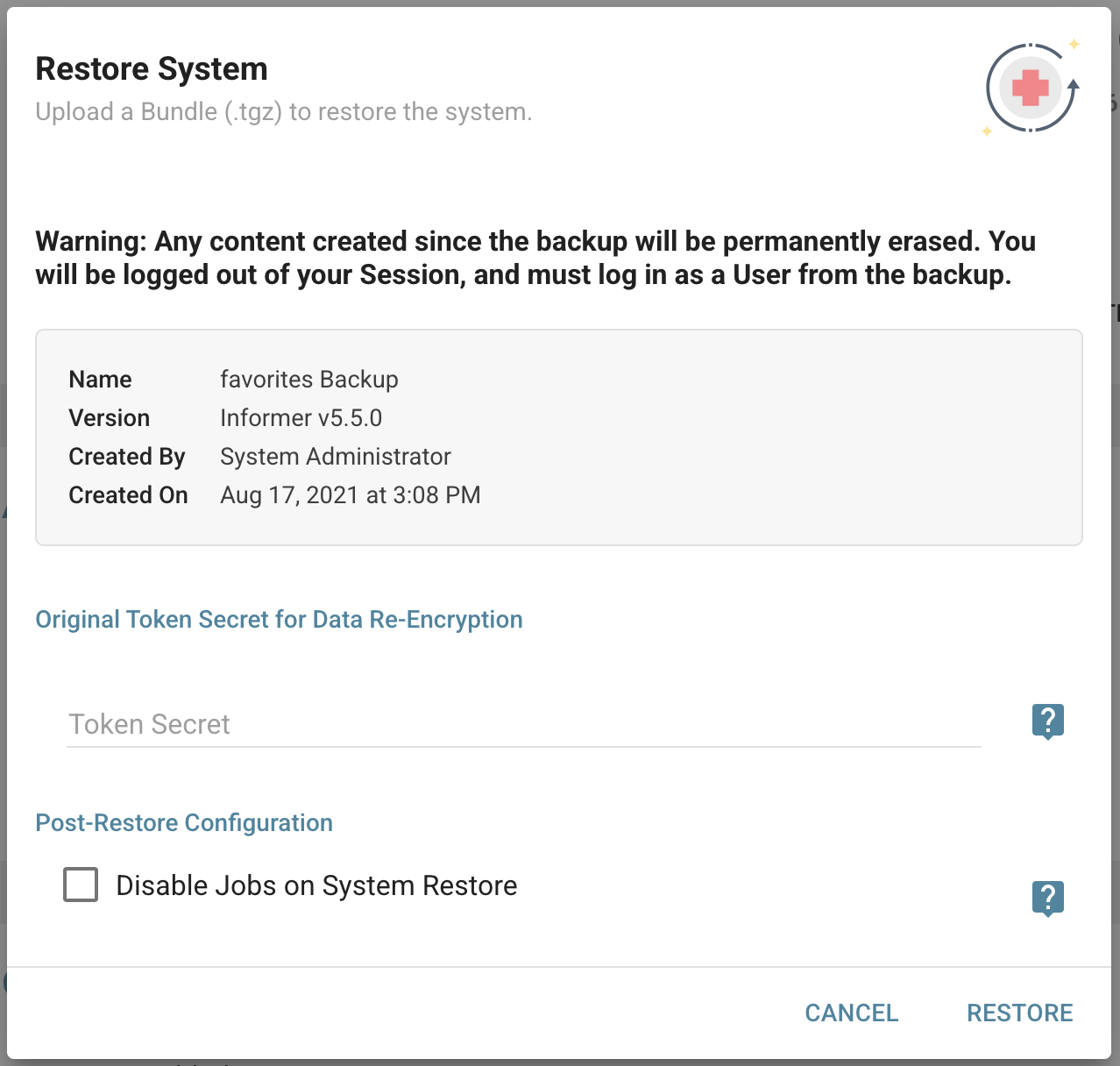
Administrators use a backup Bundle to restore the Informer data. Either click Choose File and navigate to the backup file, or drag and drop the saved file into the box.
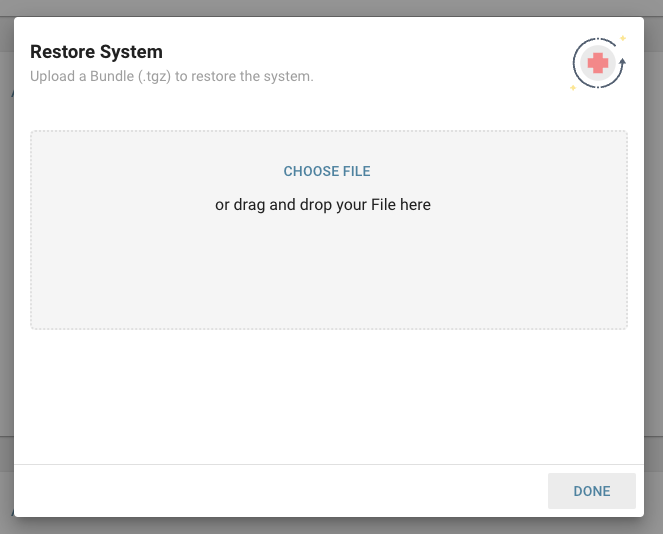
Once a file is selected, the Restore System dialog shows information about it, including the file name, the version of Informer, who created it, and its creation date. Any content created since the backup file's creation will be permanently erased. Complete the restore by clicking Restore in the bottom right of the dialog. Users must log back in as a User from the backup to complete the restore.
The Token Secret field, under Original Token Secret for Data Re-Encryption, ensures secure access to encrypted data during restoration, decrypting and re-encrypting according to the new environment's security standards. This is used primarily when moving content from on-premise to cloud.
The Disable Jobs on System Restore checkbox guarantees that Jobs are disabled through admin settings once the system restore completes. This is useful when administrators want to prevent Jobs from automatically starting following a restore. If this option is not selected, the admin setting for Jobs keeps its state from before the restore.
License
The License section lists information regarding the Informer deployment's license. Click the Update License button in the upper-right corner of the License section to open the Update License dialog.
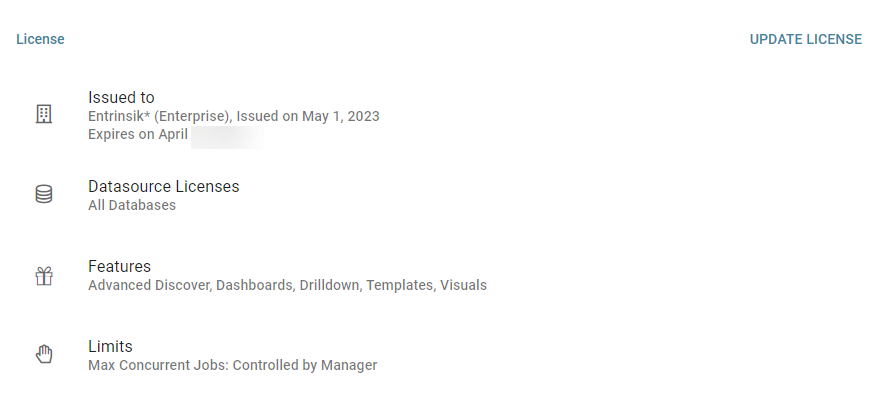
- Issued to: Lists the client, issue date, and expiration date of the license.
- Named Users: The licensed total and how many Users are currently in use. Shown only when the license sets a named-user limit.
- Datasource Licenses: Lists the types of Datasources available on the license.
- Partner Features: Shows Multi-Tenant on multi-tenant deployments.
- Features: Lists the features that are available on the license and, when licensed, the Token Types.
- Limits: Lists additional limits on the license and who controls each limit.
Updating a license
Use the Update License button and choose from the following options:
- Check License server - The Informer server establishes a connection with the Entrinsik licensing server to pull down updated license information automatically. This option requires an active internet connection.
- Upload License File - Provide a
.licfile containing license information. - Enter License manually - Provide a token string containing license information.
The last two options do not require an internet connection when the server is not yet activated. On a server with no outbound access the license still installs, but it stays unactivated: the features that depend on the Entrinsik licensing server, such as the AI Assistant and billing, remain unavailable until the server can reach it and activation completes. Use Check License server to finish activating once the server has outbound access.
Two cases still need a connection. If the licensing server is reachable and rejects the license, the install is refused rather than applied. And if the server is already activated, replacing its license with one issued for a different system requires a connection, because the existing activation cannot be transferred while offline.