API Tokens
The API Tokens page provides information about the API Tokens created in the system. Access this page from the Administration page and click API Tokens in the navigation panel.

API Tokens page
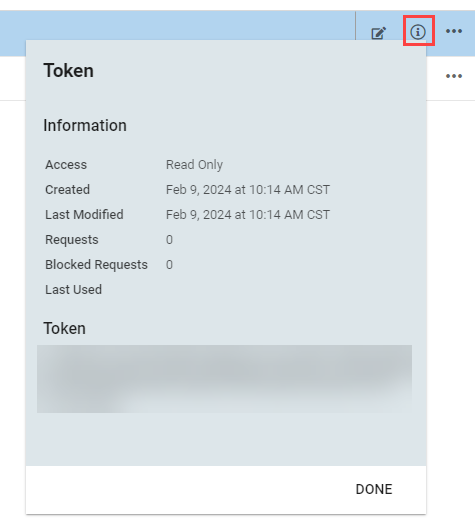
The API Tokens page contains a table with basic information about each Token. Clicking the i information icon at the end of a row opens a panel with additional information.
Creating Tokens
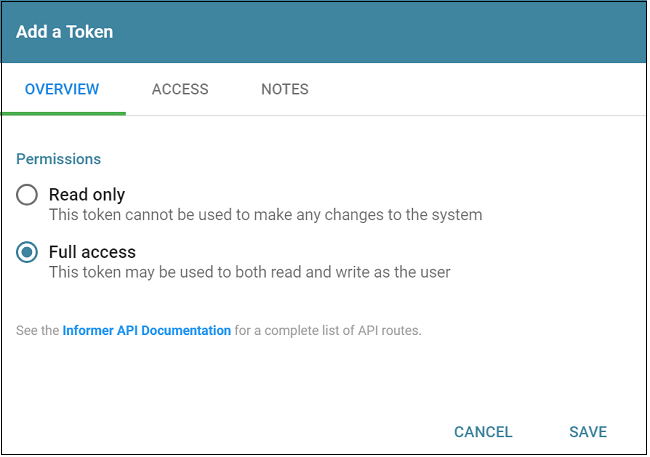
Click the + New button in the top-left corner to create and select the type of Token. The two options are:
- API Key: A general API Key used to validate access to the Informer deployment.
- Cloud Publish Key: Allows a remote Informer to publish Reports to the current instance. The remote Informer shares and revokes access to the published Reports. It is a read/write Token, but only for the API routes necessary to achieve this functionality. All other routes are forbidden.
This opens a configuration window to set access permissions and restrictions. The three configuration tabs are:
- Overview: Controls the Token's read and write access. These options are only available with API Keys.
- Access: Limit the sources that have Token access.
- No Restrictions: Anyone may use the Token.
- By Host Name or IP Address: Allows only specific devices to use the Token. Separate values with commas.
- By IP Range: Allows only a specific range of IP addresses to use the Token. This is useful for internal networks.
- Notes: Add any notes to the Token.
After choosing the appropriate settings, click Save to create the Token.
Copying a Token
Copying a Token is the easiest way for Users to use it. Copy a Token by:
- Clicking the clipboard icon in the Copy Token column on the API Tokens listing page.
- Highlighting and copying the value at the bottom of the Token information panel.
If the server could not sign a Token's key, the Copy Token column shows a warning icon instead of the clipboard, and the information panel shows the same notice in place of the value. Recreate the Token to get a working key.
Editing a Token
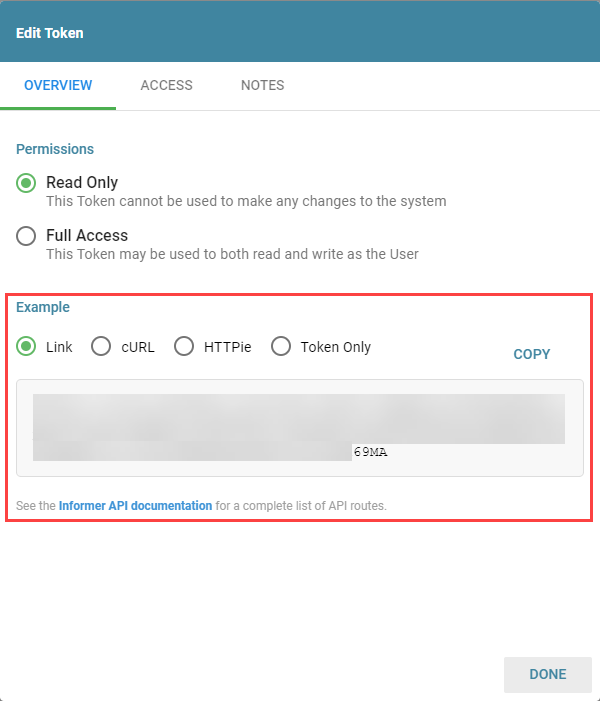
Edit a Token's permissions, access, and notes by opening the Edit Token window using the edit (pencil) icon.
Note: Users cannot change a Cloud Publish Key's permissions. These keys always have the Read/Write permission.
API Tokens have additional copy options in the Example section of the Edit Token dialog to help Users use the Token in different situations. The options are Link, cURL, HTTPie, and Token Only. Select an example with the buttons and click Copy to copy it to the clipboard.
Deleting a Token
Delete a Token using the ... action menu and selecting Delete. Confirm the action to permanently delete the Token.