Adding a Domain
Many organizations have a great deal of User information in their own Active Directories. By adding a Domain and using Informer's Domain Attribute Mapping feature, Super Users and Admins can have Informer pull that information for use in their deployment.
Once a Domain is set up, Users can log into Informer and carry over any information stored in their organization's directory.
Domain setup
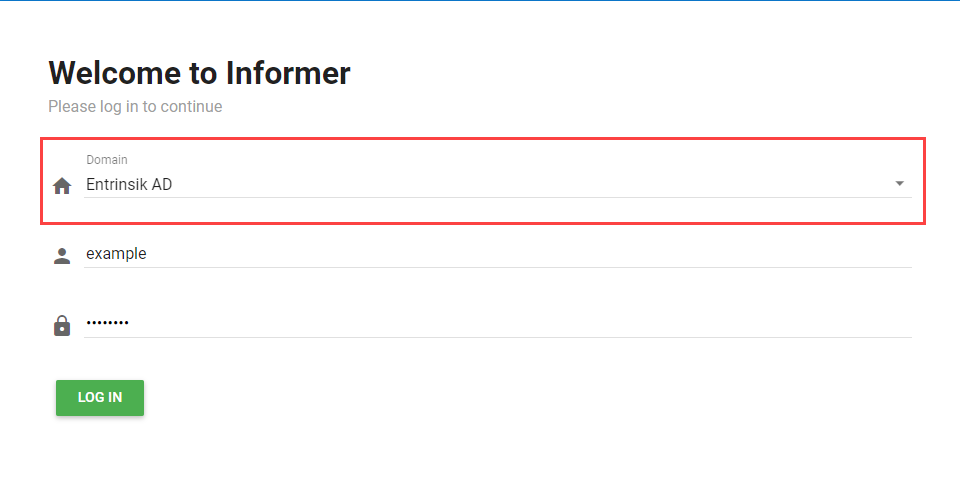
Domains allow Informer to authenticate its Users against a centralized directory service. Informer supports authenticating against Active Directory (AD) and LDAP directory services, as well as passing credentials to a SAML service provider. This article focuses on configuring an AD or LDAP Domain. For more information on configuring a SAML Domain, see Configuring a SAML Domain.
Informer uses AD and LDAP Domains for two main things: authenticating a User at login time, and adding Users to the system in bulk via a scan.
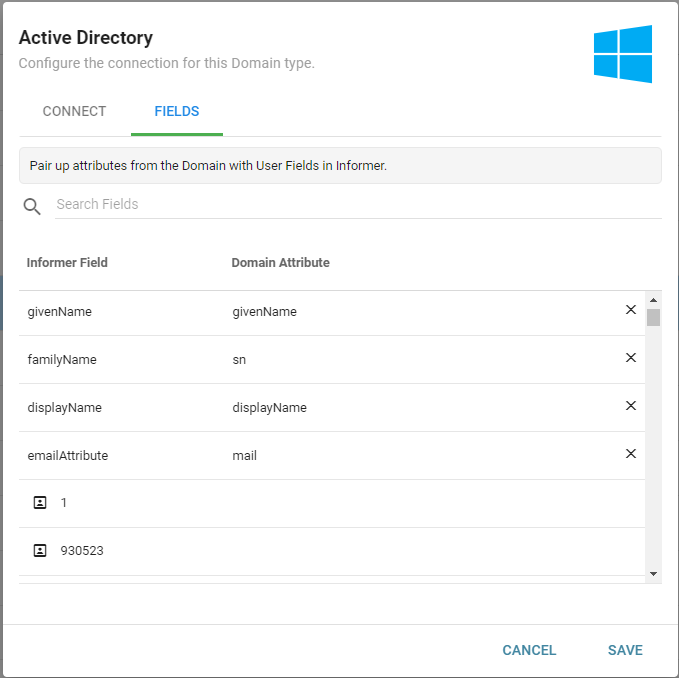
The Fields tab on the create/edit Domain dialog has text boxes for specifying the domain attributes for the User objects that come over to Informer. You can pull in additional fields associated with each user; if you already have user fields in your directory, you can bring them over.
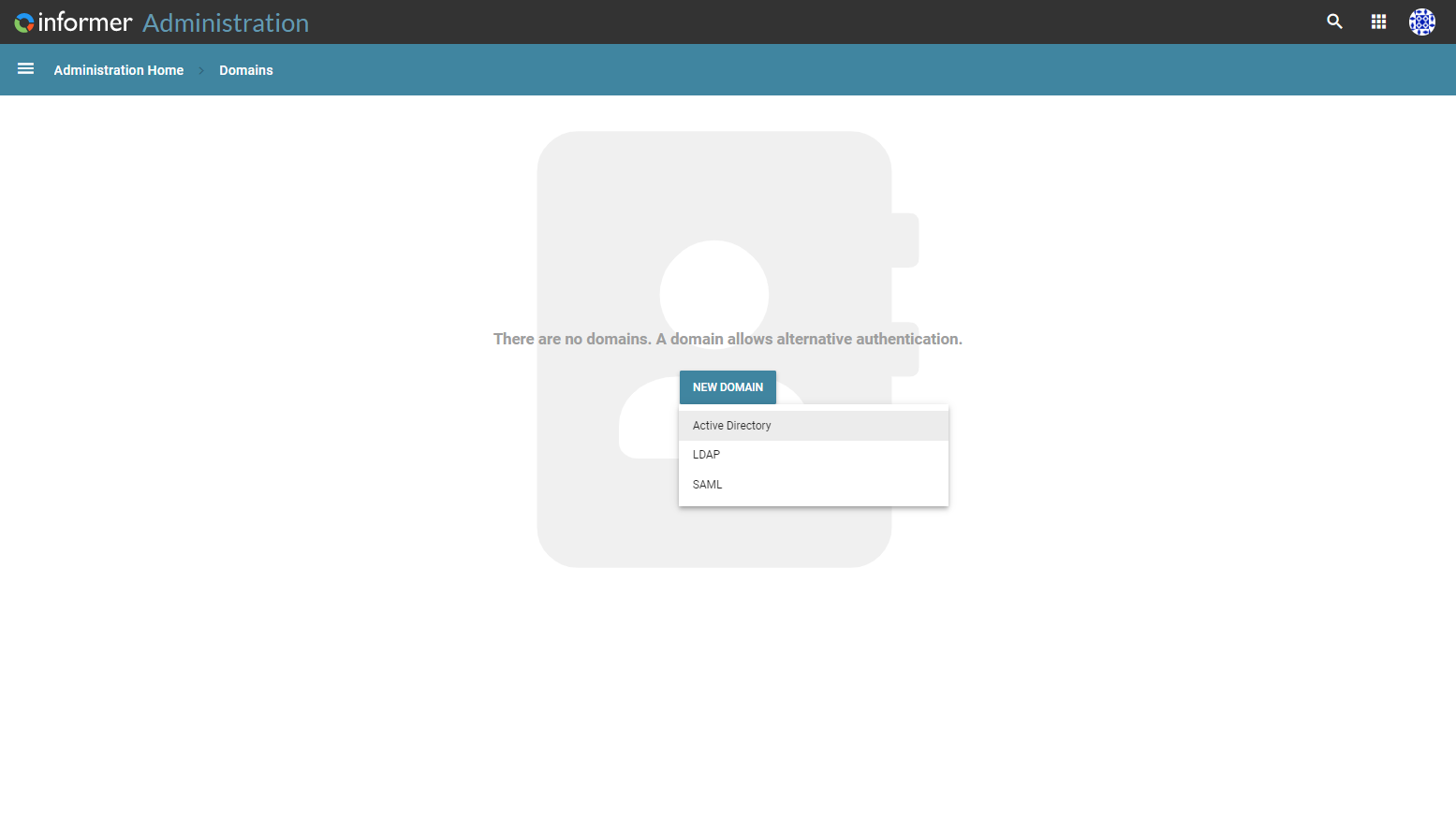
To set up a new Domain, go to the Administration page and click the Domains icon. Click the New Domain button, then select a Domain type. This opens a configuration form for the Domain.
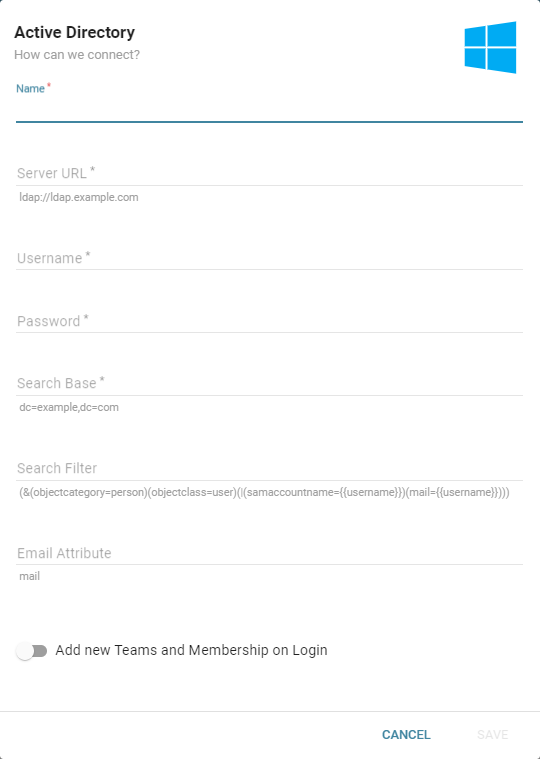
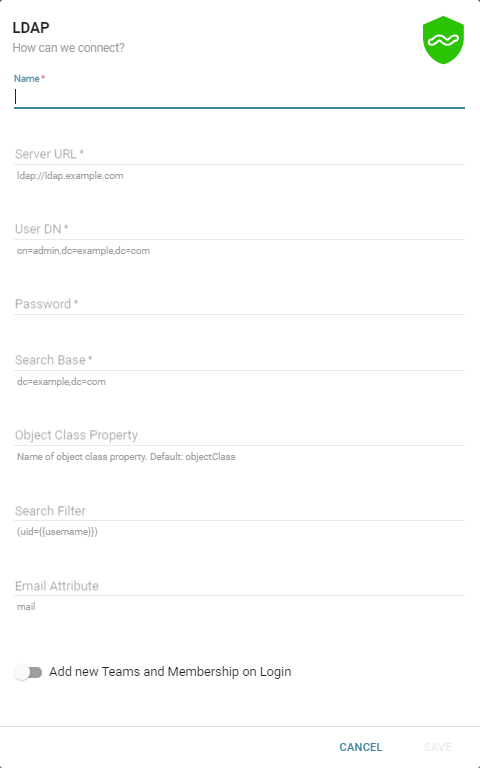
Fill out the configuration form with the proper values:
- Name: The name of the Domain as it should appear inside Informer and on the login page dropdown.
- Server URL: The address for the server hosting the directory service. It can be a fully qualified domain name or an IP address.
- Username / User DN: The user on the directory service that Informer will use to query that directory service.
- Password: The password for that user.
- Search Base: Defines the starting point for the user search in the directory tree. It should be wide enough to let Informer query for and return all the expected users.
- Object Class Property (LDAP Domains only): Sets how the object class is configured on the LDAP directory service. The default is
objectClass. - Search Filter: Defines the rest of the query that Informer runs against the directory service to authenticate a User at login time. Using the default text underneath this textbox results in a query that runs against the entire directory service, using the Search Base as a starting point. See the examples below.
- Add new Teams and Membership on Login: A switch that, when on, adds new Teams and Team membership from the directory when a User logs in.
To limit the directory service users allowed to log in as Informer Users, copy/paste the default filter just below the input and add additional search criteria. For example, to limit logins to users in a directory service group called Employees:
LDAP filter:
(&(memberOf=CN=Employees,DC=domain,DC=com)(uid={{username}}))
Active Directory filter:
(&(objectcategory=person)(objectclass=user)(memberOf=CN=Employees,DC=domain,DC=com)(|(samaccountname={{username}})(mail={{username}})))
If there are any uncertainties about what these values should be, contact an Active Directory or LDAP administrator.
Domain Attribute Mapping
When connecting to a Domain, Users can map attributes from the domain onto corresponding Informer Fields. After connecting to a Domain, click the Fields tab in the Domain settings menu. From this tab, search through User Fields in Informer and map them to the appropriate domain attribute by double-clicking under Domain Attribute in a Field's row and entering the correct attribute. This lets Informer pull the information for the selected User Field directly from the domain. The emailAttribute row on this tab names the directory attribute that supplies the User's email address; it defaults to mail.