User profile personalization options
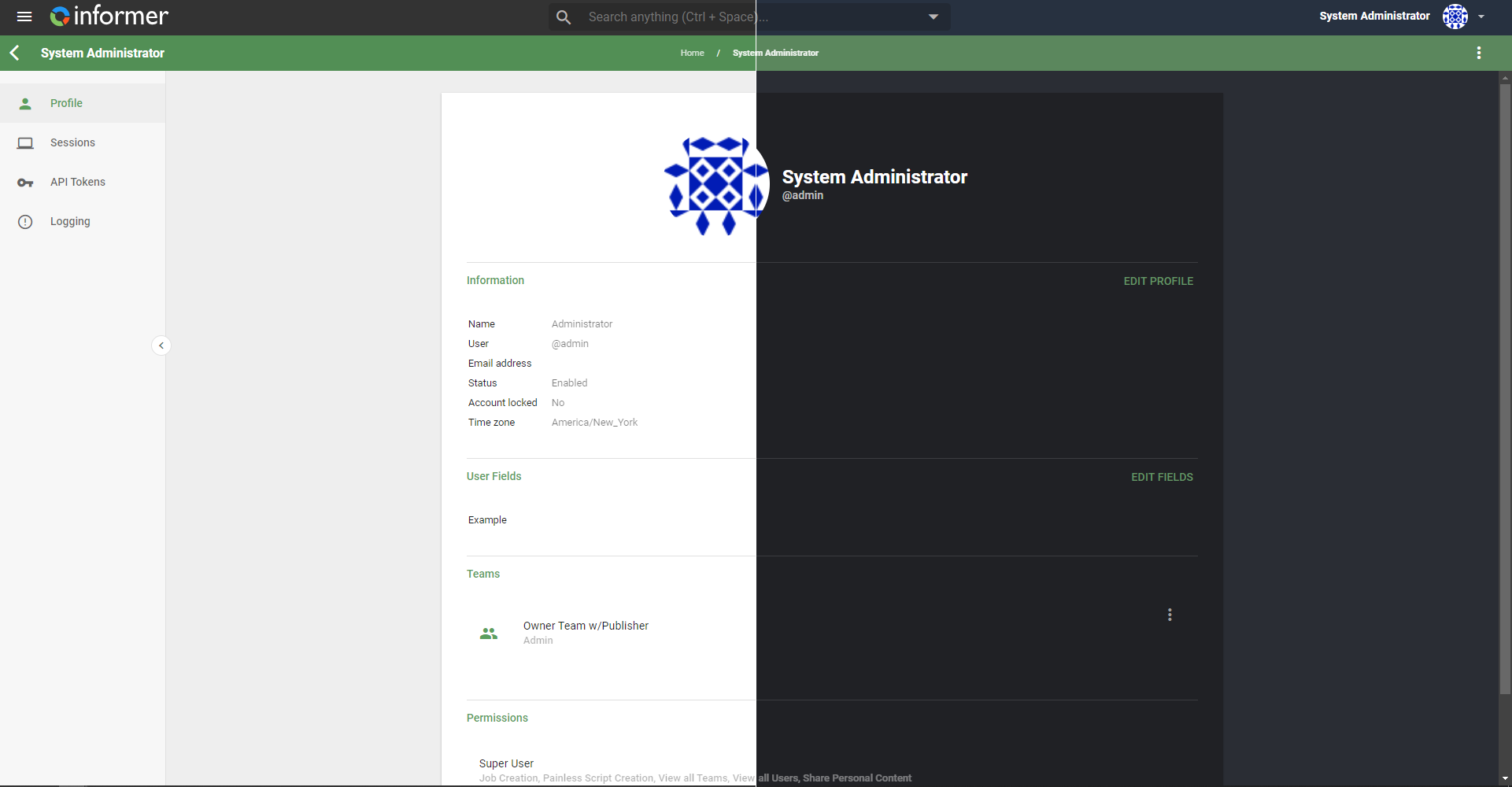
Users customize their profile from the menu in the upper right of any page. The options include changing the profile picture, switching between light and dark mode, and setting the language or time zone. There are additional options to show keyboard shortcuts and the Getting Started Tour.
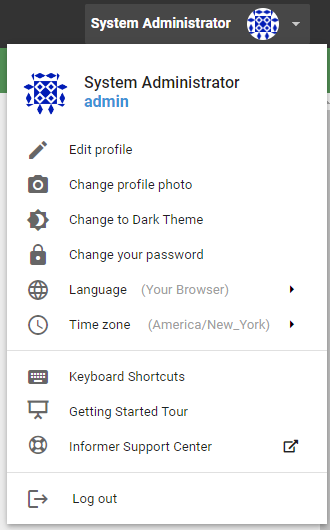
Edit Profile
View Profile opens your profile page, where Edit profile opens a window to change your first, last, or display name, email address, and time zone. Click Save to save the changes.
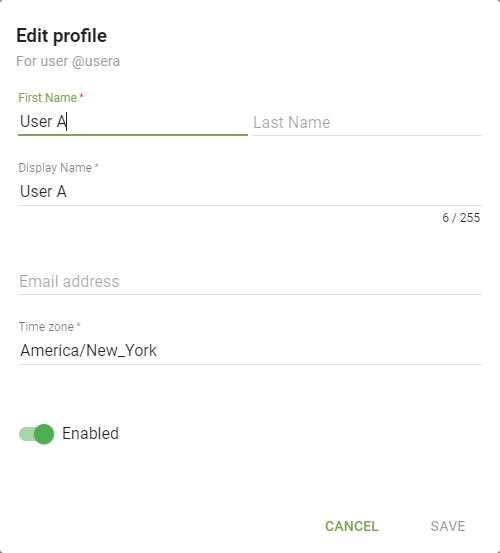
Change Profile Photo
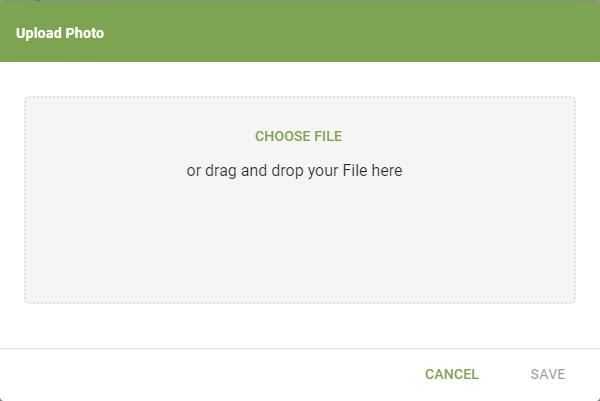
Opens a window to change your profile picture. Click Choose File to open a system dialog filtered to the appropriate file types, select the file, and click Save.
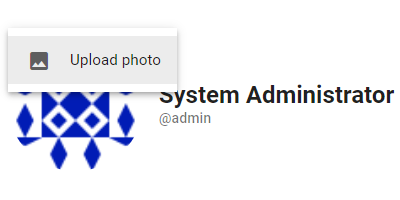
You can also do this from the User profile page by clicking your current profile photo, selecting Upload Photo, and following the same steps.
Connections
Opens a dialog listing the Integrations you have connected, with a Connect button for each one still available to you. See How users connect.
Change to light or dark theme
Change to Dark Theme (or Change to Light Theme, whichever is not active) toggles Informer between light and dark themes. Light is the default and is useful in bright environments; dark is better for darker environments and can relieve eye strain during long screen use.
Change your password
Lets you change your password. See Passwords and multi-factor authentication.
Language
Regardless of location, organizations can use a localized Informer 5. Informer has native support for German, Mexican Spanish, and Canadian French.
Setting the local language
Change your language from the User Profile menu. Click the User icon in the top right, click Language, and choose the language. Informer refreshes and applies it; all Informer text appears in the selected language.
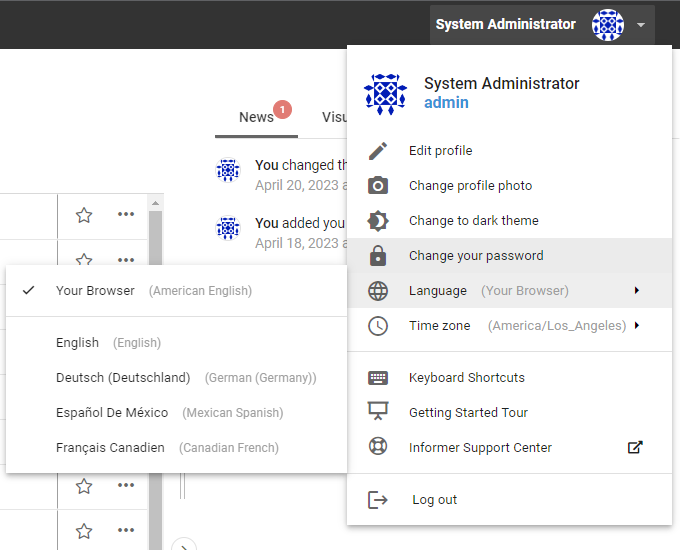
User inputs such as Report, Dataset, and Field names stay in their original language.
Changing the browser language
By default, your language in Informer is set to the browser's default language, so changing the browser language changes Informer's language. See the documentation for your browser (Chrome, Edge, or Firefox) for how to change its language.
Time Zone
Changes your time zone. By default it matches your computer. The other options are:
- System time: the time zone of the server where Informer is installed.
- Custom...: opens a window to set any time zone. Click the box to open a dropdown, or type to search, then click Save.
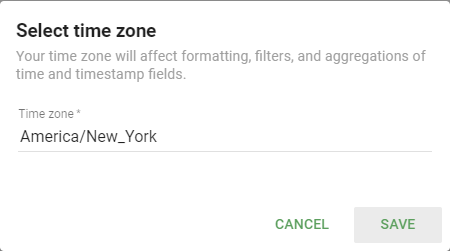
Your time zone affects the dates in the UI. If the database or Informer server is in a different time zone, you see data with a time offset.
Keyboard Shortcuts
Opens a window showing the keyboard shortcuts available in Informer. Sort by clicking the Command and Keys headers, and click Done to close.
The Go to entries appear only for the navigation items you can see, and on a Mac the Alt keys read as Option.
| Command | Keys |
|---|---|
| Global Search | Ctrl + Space |
| Go Home | Alt + 1 |
| Toggle Theme | Alt + T |
| Go to Assistants | Alt + A |
| Go to Apps | Alt + 1 |
| Go to Reports | Alt + 2 |
| Go to Datasets | Alt + 3 |
| Go to Datasources | Alt + 4 |
| Go to Teams | Alt + 5 |
| Go to Users | Alt + 6 |
| Go to Jobs | Alt + 7 |
| Go to Administration | Alt + 8 |
| Select All | Alt + A |
| Select None | Alt + D |
| Move Up | Up Arrow |
| Move Selection Up | Alt + Up Arrow |
| Move Down | Down Arrow |
| Move Selection Down | Alt + Down Arrow |
| Toggle Selection | Space |
| Find | Alt + F |
| Delete | Delete |
Getting Started Tour
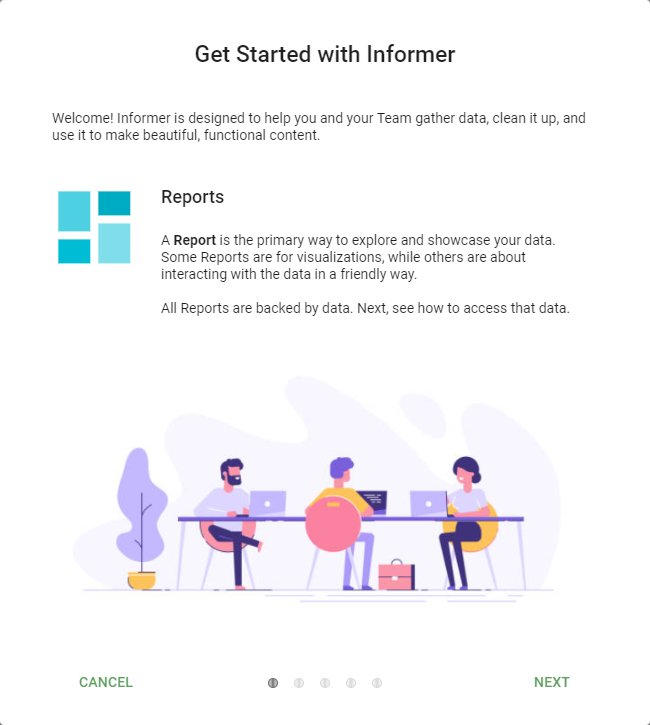
Opens a window with a tour of the different parts of Informer. Click Next or Back to move through the slides, and Cancel (or Finish on the last slide) to close it.
Informer Support Center
The Informer Support Center link redirects to the URL configured in the Help URL & Support Email setting in Administration. By default it points to the Informer Support Center home page. Users need a login to view the articles.