Teams Actions overview
Click the ... on the left side of a row on the Teams listing page to open the Actions menu, which collects the ways to modify the selected Team.
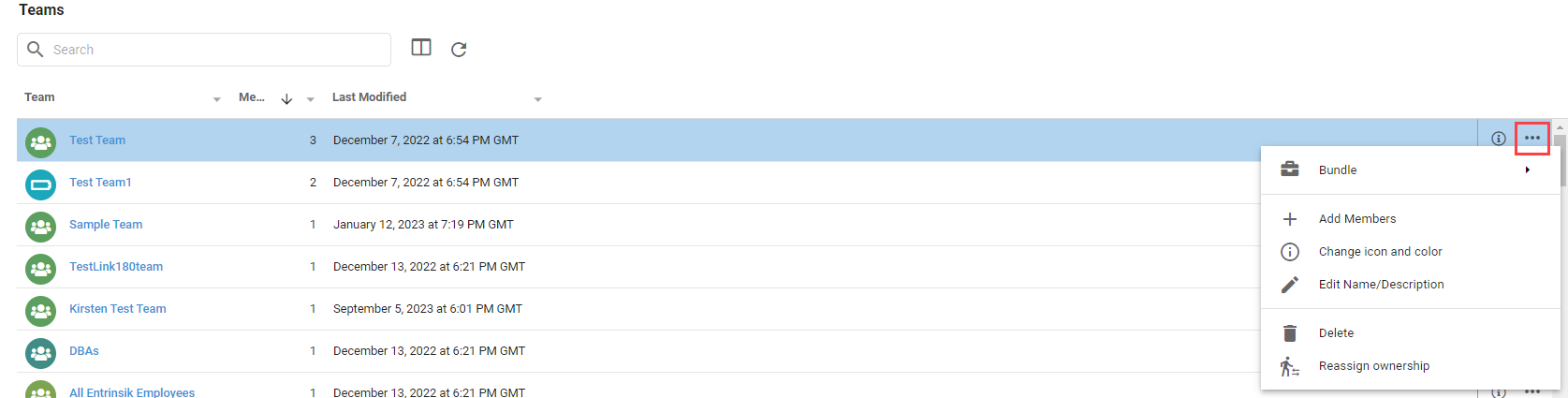
Bundle
Bundle has options to:
- Add to Bundle: add the selected Team to an existing or new Bundle.
- Bundle and Download: immediately create a Bundle with the Team and download the file.
- Bundle and deploy to Tenant: export the Team in a Bundle and import it to one or more Tenants.
Add Members
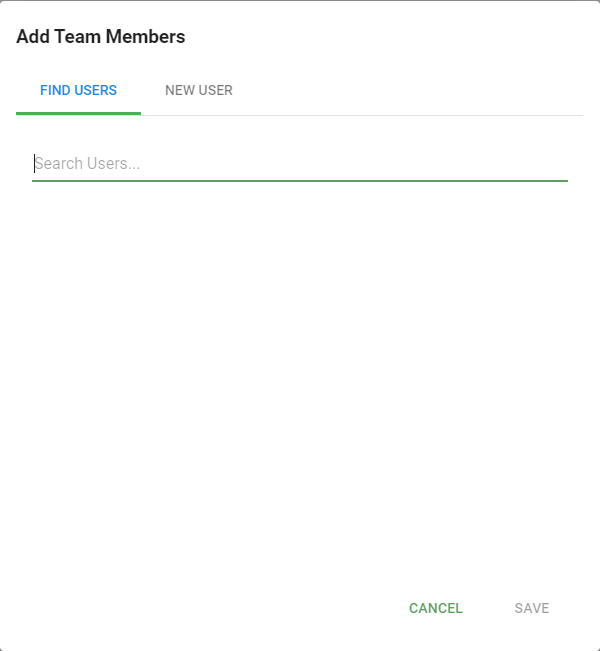
Add Members opens a dialog to add new or existing Users to the Team. Choose the role to assign, then pick Existing User(s) and search for Users, or New User to create and enable a new User and add it. If the Team has an AI usage profile assigned, a notice explains the AI access anyone you add gains. Click Save after selecting or creating Users.
Edit Team
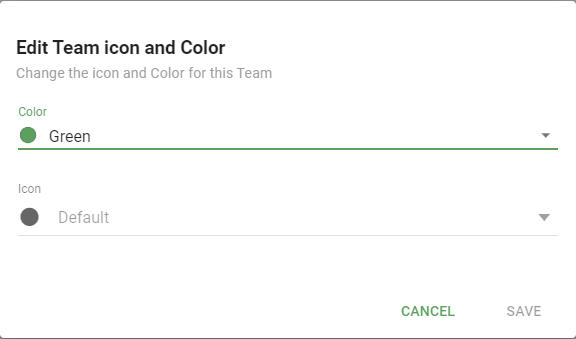
Edit Team opens a dialog to update the Team's name, ID, description, icon, and color. Pick a color or icon from the choosers and click Save.
Delete
Delete opens a dialog that confirms deleting the Team and asks what to do with the content the Team owns.
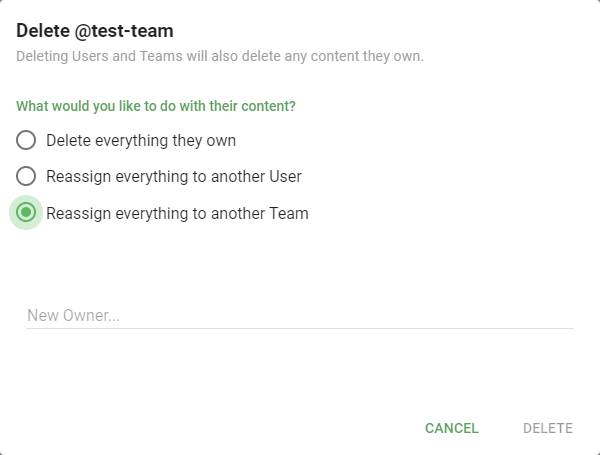
There are three options for the Team's content:
- Delete everything it owns.
- Reassign everything to another User.
- Reassign everything to another Team.
Select a new owner from the dropdowns to reassign the content, then click Delete.
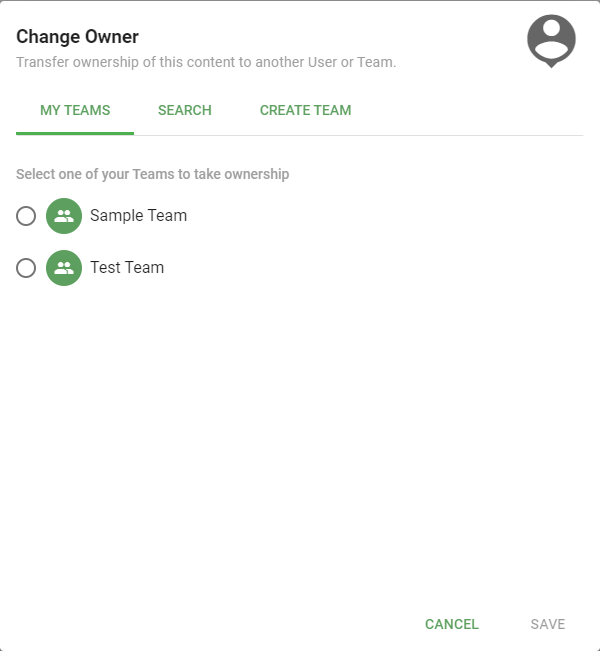
Reassign ownership
Reassign ownership opens a dialog to change the Team's ownership to another User or Team. Changing a Team's owner also changes the ownership of all the content the Team owns. Use the tabs at the top to find a new owner.