External Links
External links make sharing Informer content easier. Generate a link that can be sent to colleagues outside of Informer, allowing them to view content without logging in. Informer supports external links on Dashboard, Comparison Board, Data View, and Visual content. Users must have at least Publisher-level access to the content to generate an external link. See Report role breakdown for more.
Generate an external link
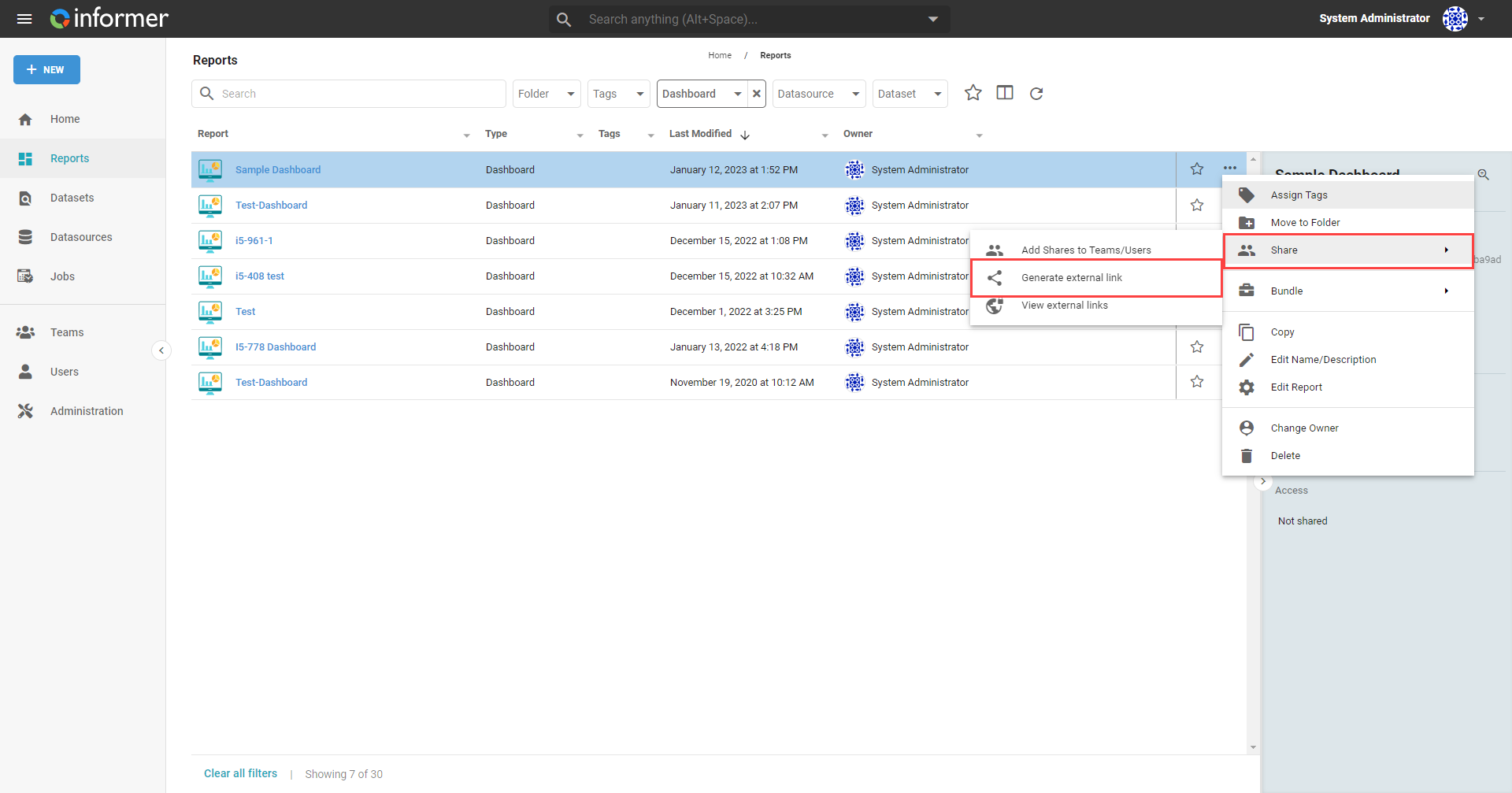
Create an external link by clicking the ... Action menu at the end of the desired Report's row on the Home page or the Reports listing page. Hover over Share and select Generate external link.
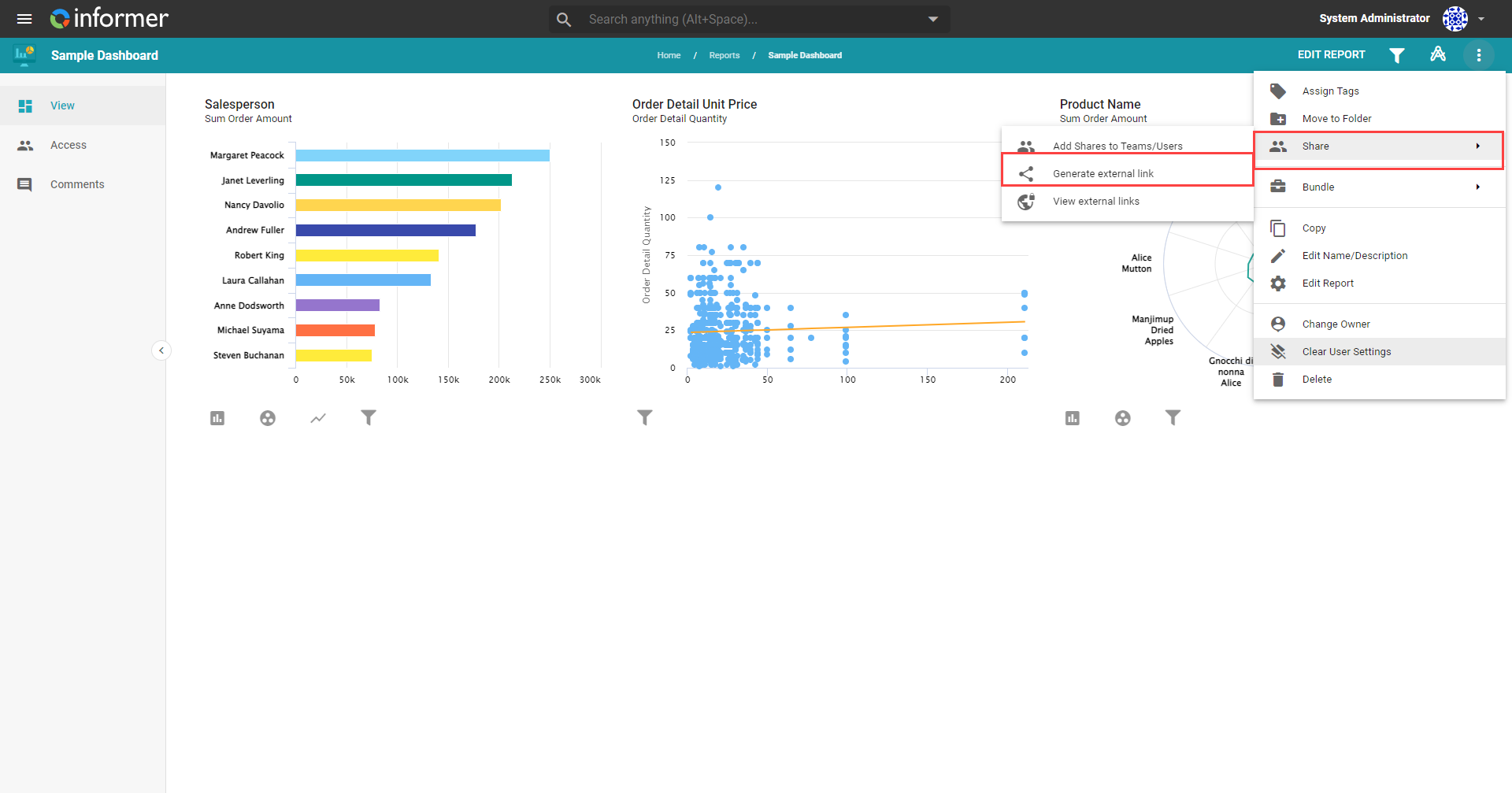
Alternatively, from inside the Report, click the Actions menu in the top-right, select Share, then Generate external link.
Overview
The generated link includes an API token that grants the recipient read-only access to specific content. On the Overview tab, use the Theme option to toggle between light and dark modes for the linked Report. Under Share, choose Link for a full URL that can be sent to people outside Informer, or Embed to get code that embeds the Visuals directly into a web page. Click Copy beneath the link or code to copy it to the clipboard.
External links generated from Reports have Visuals that are fully interactive, with drilldown and pivot capabilities. External links generated from a standalone Visual render a dynamically generated static image containing live results from the Query backing the Visual.
Access
Access to the API token can be restricted by host name or IP address from the Access tab.
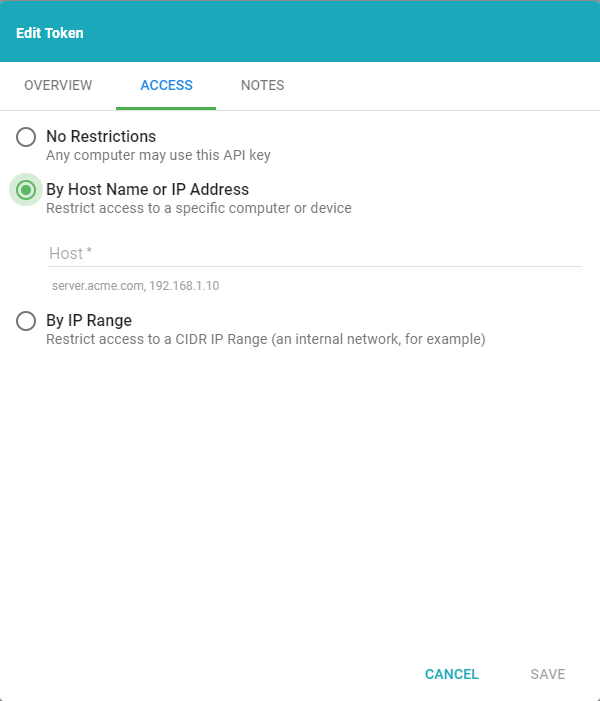
- No Restrictions: anyone may view the link or embedded Visual.
- By Host Name or IP Address: allows only specific devices to view the Visual. Separate values with commas.
- By IP Range: allows only a specific range of IP addresses (a CIDR range), useful for internal networks.
Notes
The Notes tab lets you leave notes to keep track of who each link is intended for.
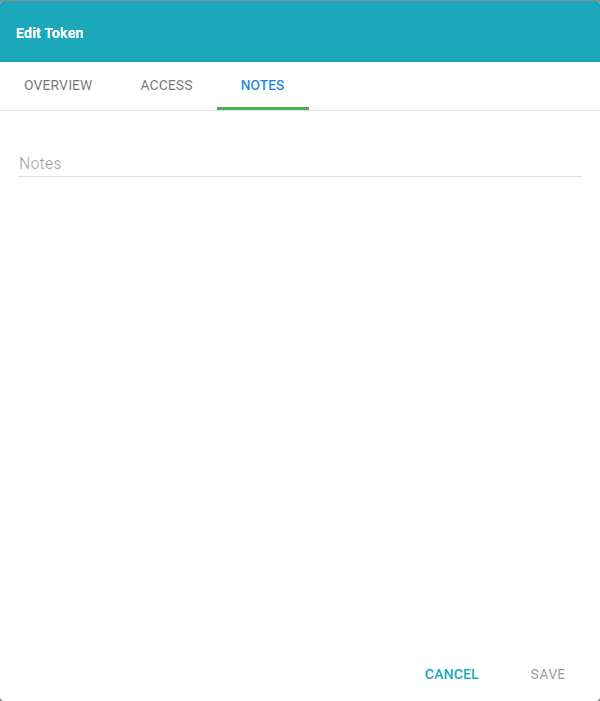
View a note associated with an external link from the API Tokens area, either on the Administration page or through the User profile page of the User that generated the link. Double-click the token's row or click Edit, then click the Notes tab.
Reports access
Use the Access page of a Report to view active links after generating an external link or publishing a Report to the cloud. The External Access tab lists active links with detailed information on each.
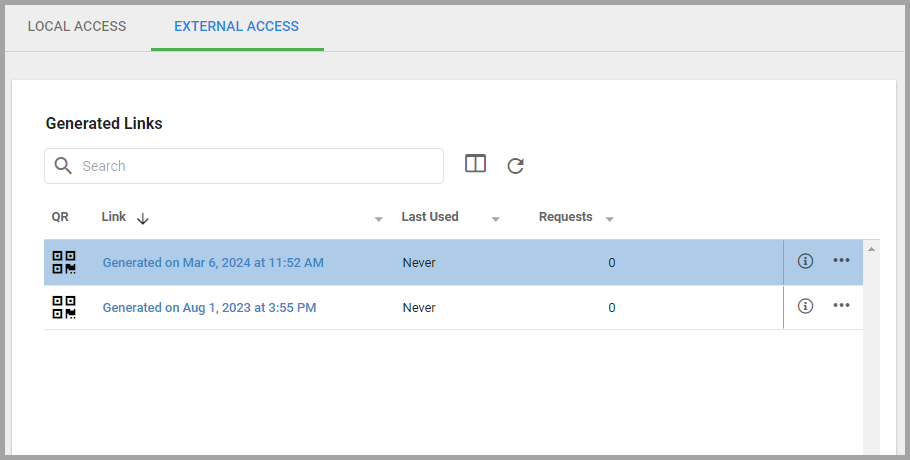
- Description: the link's notes or, when it has none, the date it was generated (Generated on) or published to the cloud (Published on).
- Link Type: Live link for a link generated from this Informer, or Published static link for a Report published to the cloud.
- Link: click the open-in-new icon to open the link in a new browser tab.
- Last Used: when the link was last used to view the Report, or Never.
- Requests: the number of times the link has been used.
- Edit (the pencil icon, or double-click the row): opens the token dialog described above to change the theme, access restrictions, or notes.
- Revoke (the link-off icon): stops the link from accessing the Report, after a Revoke Access? confirmation.
Select rows with their checkboxes to revoke several links at once: the toolbar that appears offers Revoke for the selection, and Edit when exactly one link is selected. The toolbar appears only for Users with share access to the Report.
A published link has no local token to edit, and revoking it needs the same Publish to Cloud permission as publishing it; without that permission the Revoke button does not appear on that row. If the cloud instance cannot be reached, the links generated locally still list normally and no error appears.
Because a published link is created on the cloud rather than in this Informer, a Report whose only link was published has no local row to fall back on. When the cloud cannot be reached in that case, the tab shows Published links could not be listed. Any published link that already exists remains active. so that the empty grid is not mistaken for the Report having no public link.