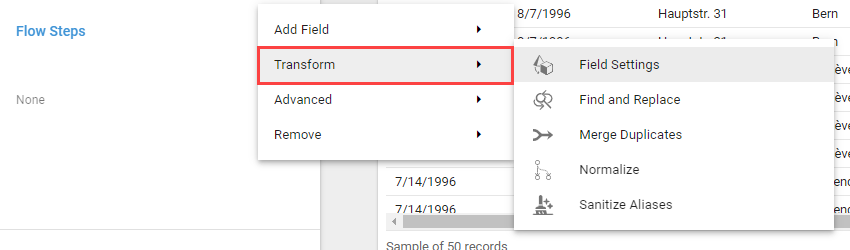
Transform Flow Steps
Transform Flow Steps modify the existing Fields, values, and structure of a Query.
Field Settings
The Field Settings Flow Step modifies the label, data type, default value, and security of the Fields in a Query.
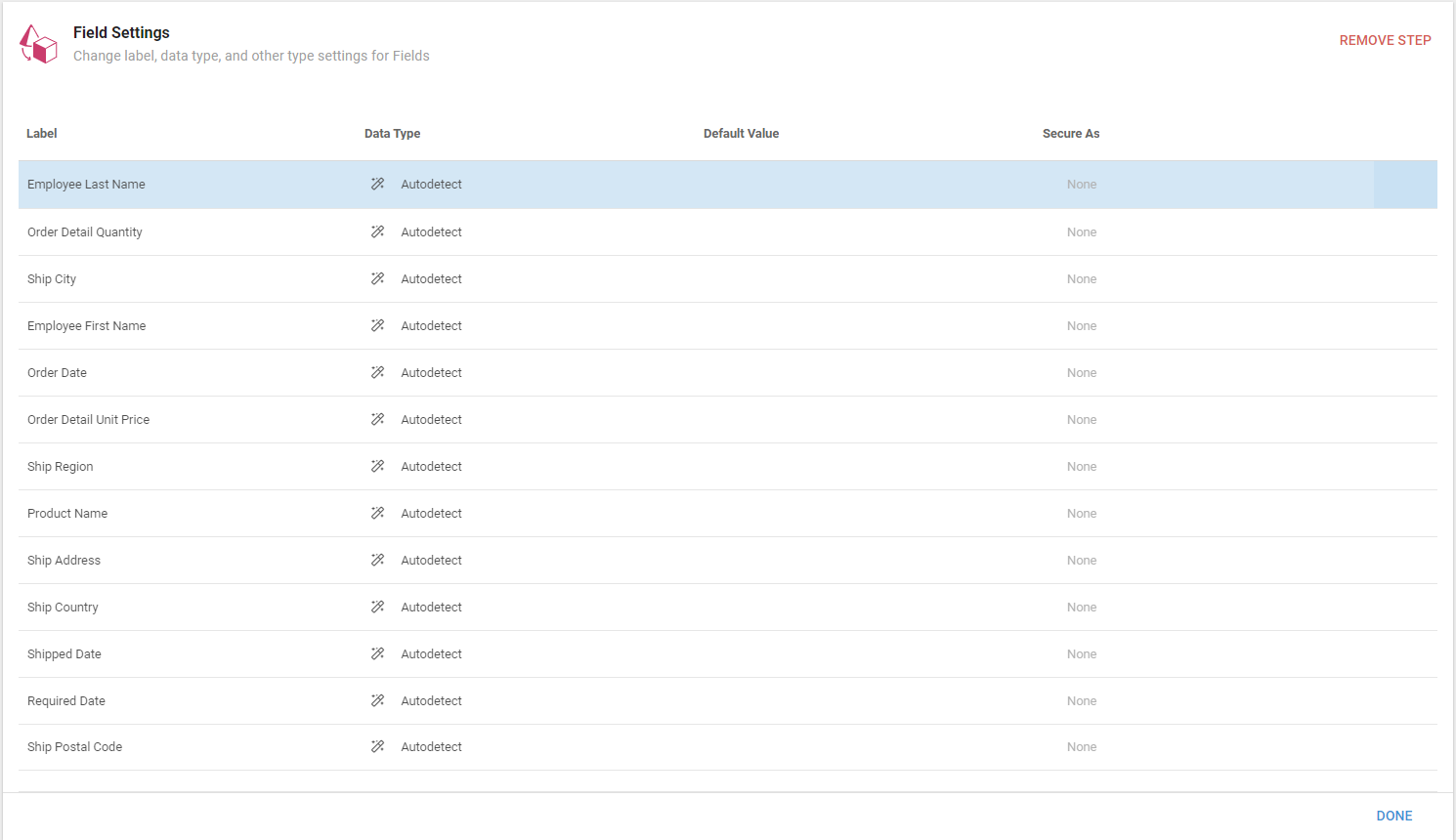
- Label: click a Field's name in the Label column to change it.
- Data Type: click Autodetect in the Data Type column to change the Field's data type.
- Default Value: set the Field's default value.
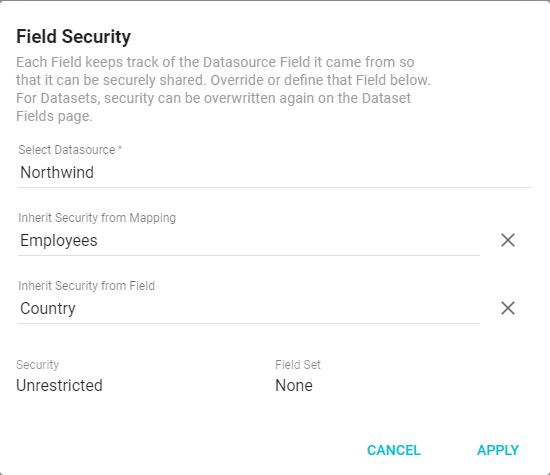
- Secure As: lets Fields inherit a different security setting from specified Mappings or Fields. This sets a security definition that prevents the Dataset Field from overwriting it. Each Field tracks the Datasource Field it came from so it can be securely shared. You can overwrite security for Datasets again from the Dataset Fields page.
Find and Replace
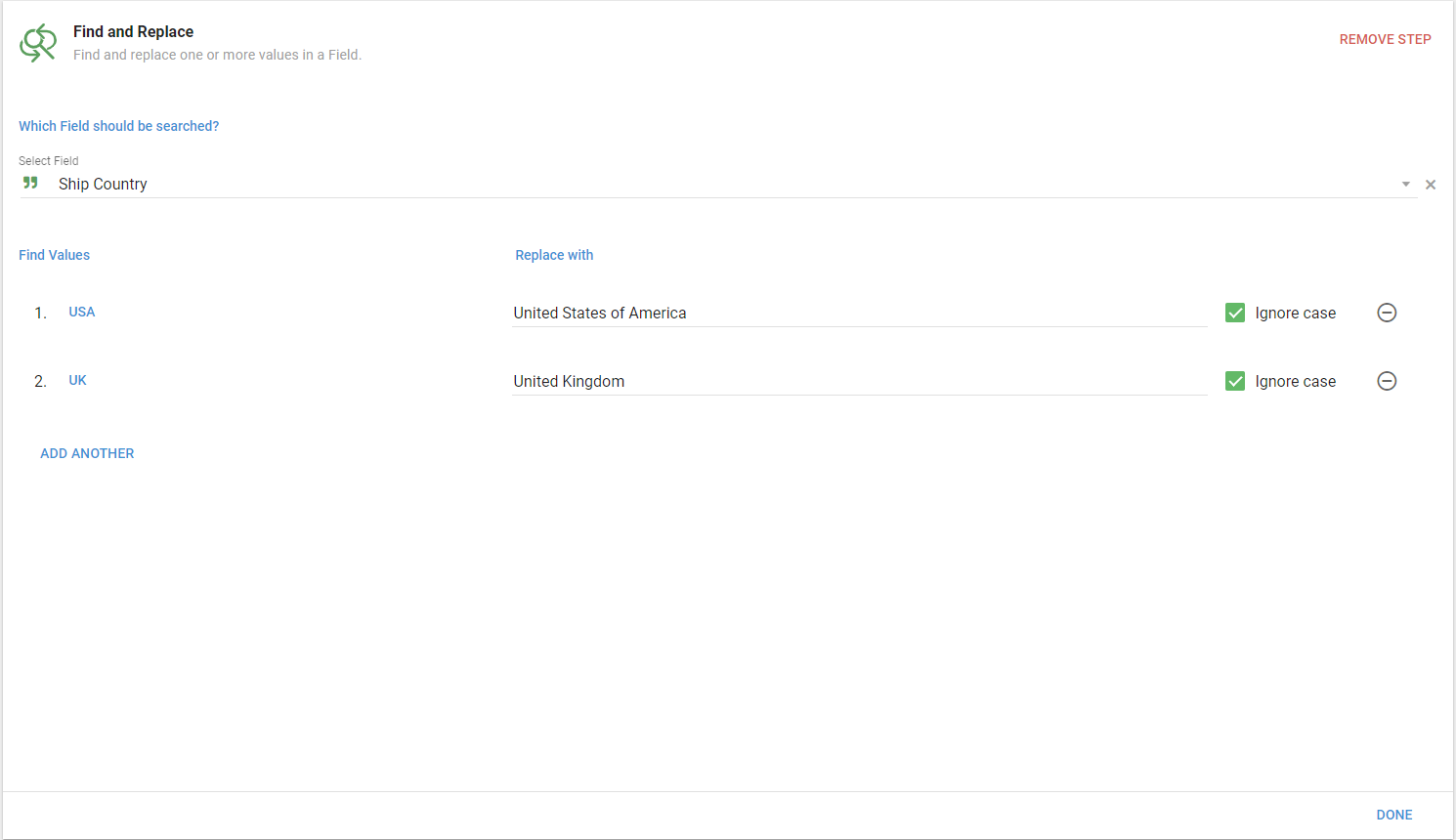
The Find and Replace Flow Step replaces all instances of a Field value with alternate values. This is useful for converting values to another format, such as "USA" to "United States of America".
Merge Duplicates
The Merge Duplicates Flow Step collapses records that share the same values in the Fields you choose into a single row. Merge on one Field and you get one row per distinct value; merge on several and you get one row per distinct combination.
Requirements for Fields to merge
Every Field you merge on must hold one plain value per row. That rules out:
- Object types or other complex structures (such as location)
- Arrays or collection types, even if they currently hold only one value
- Multivalues or subvalues
- Linked virtual Fields that return multiple values
- Fields added via remote links with "values as arrays"
- Fields added via a "Fields from another Datasource or Dataset" Flow Step with "values as arrays"
If a Field you need to merge on holds arrays or objects, flatten it with an earlier Flow Step: extract a property from the object, pick the first or last item of the array, or calculate a minimum or maximum.
Configuring Merge Duplicates
The editor is one form with four numbered sections. Work down it in order.
1. Select all Fields that should represent a single row. Search or pick the Fields whose values identify a duplicate. Records that share the same values in every one of them collapse into one row.
2. Deduplication Engine. All three engines produce the same merged values. They differ in how they group the records and what that costs.
- PostgreSQL (badged Recommended, and the default for a new step): "Uses GROUP BY for efficient deduplication without contesting Elasticsearch resources. Handles large datasets reliably."
- Stream (badged Fastest): "Streams records and merges when values change. Your query MUST return results sorted by the merge Fields or duplicates will be missed." Choose it only when the Query has an Order By on every Field you merge on; that sort is what makes it correct.
- Elasticsearch: "Indexes and sorts data in Elasticsearch for distributed deduplication. May timeout on very large datasets."
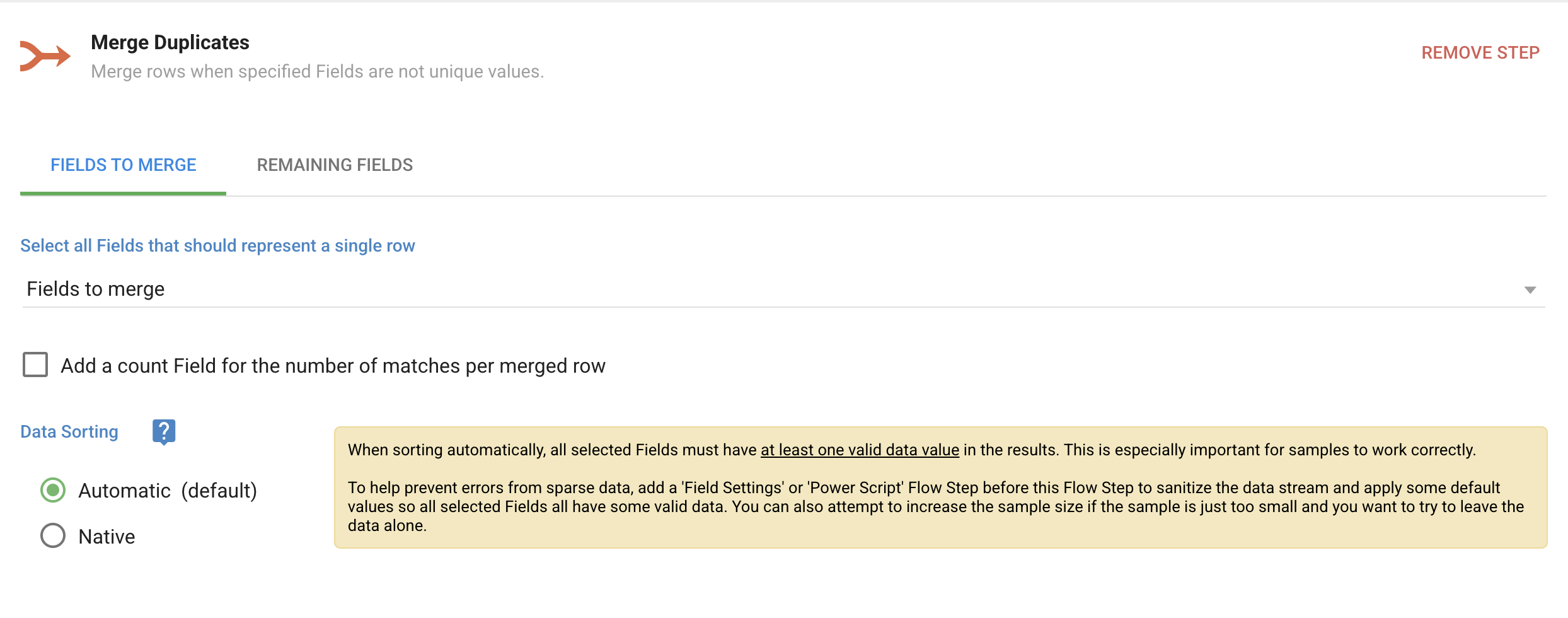
3. Count Field? Tick Add a count Field for the number of matches per merged row to add a column holding how many records each merged row represents. Inputs for its Label and Alias appear once it is ticked.
4. Remaining Fields. Every Field you are not merging on is listed here with a Keep values as option that decides how its values survive the merge. Which options a Field is offered depends on its type:
| Keep values as | Offered for |
|---|---|
| All values as an array | every Field |
| Only unique values as an array | every Field |
| The first value encountered | every Field |
| The last value encountered | every Field |
| The minimum value encountered | numeric, date, and time Fields |
| The maximum value encountered | numeric, date, and time Fields |
| The sum of all values | numeric Fields |
| The average of all values | numeric Fields |
Update all applies one option to every remaining Field at once. A Field whose type does not support that option falls back to All values as an array.
A few details about how the options treat values:
- Arrays keep the order the records arrived in, and the positions line up across Fields: the third entry of Course and the third entry of Time come from the same record. All values as an array keeps a blank value as an empty entry for the same reason, so the positions never shift. Choose it for every Field that has to stay associated.
- Only unique values as an array drops repeats and blanks while holding that same order, so the first occurrence of each value is the one you see. Dropping entries breaks the association with other Fields, so use it only for a Field that stands alone.
- The minimum, maximum, sum, and average ignore blank values. A Field with no usable values yields an empty cell.
- The sum and average count every value that reads as a plain number, including numbers stored in a text Field (such as
10or2.5). Formatted text such as1,234or$20, true and false values, and dates never count. When a merged row leaves any value out, its errors say so, so a total that covers only some of the values is never silent. - The minimum and maximum compare values the way the Field's type orders them: numbers by size, dates and times chronologically, and text character by character, so uppercase letters sort before lowercase ones.
- A value that does not match its Field's type, such as text in a numeric Field, is kept as it is by every option that does not compute with it.
- Errors that earlier Flow Steps attached to records carry over: a merged row keeps every distinct error from the records it combines.
- A Field added to the Query after the step was saved is merged too, with All values as an array, until you open the step and choose an option for it. A Field removed from the Query no longer appears.
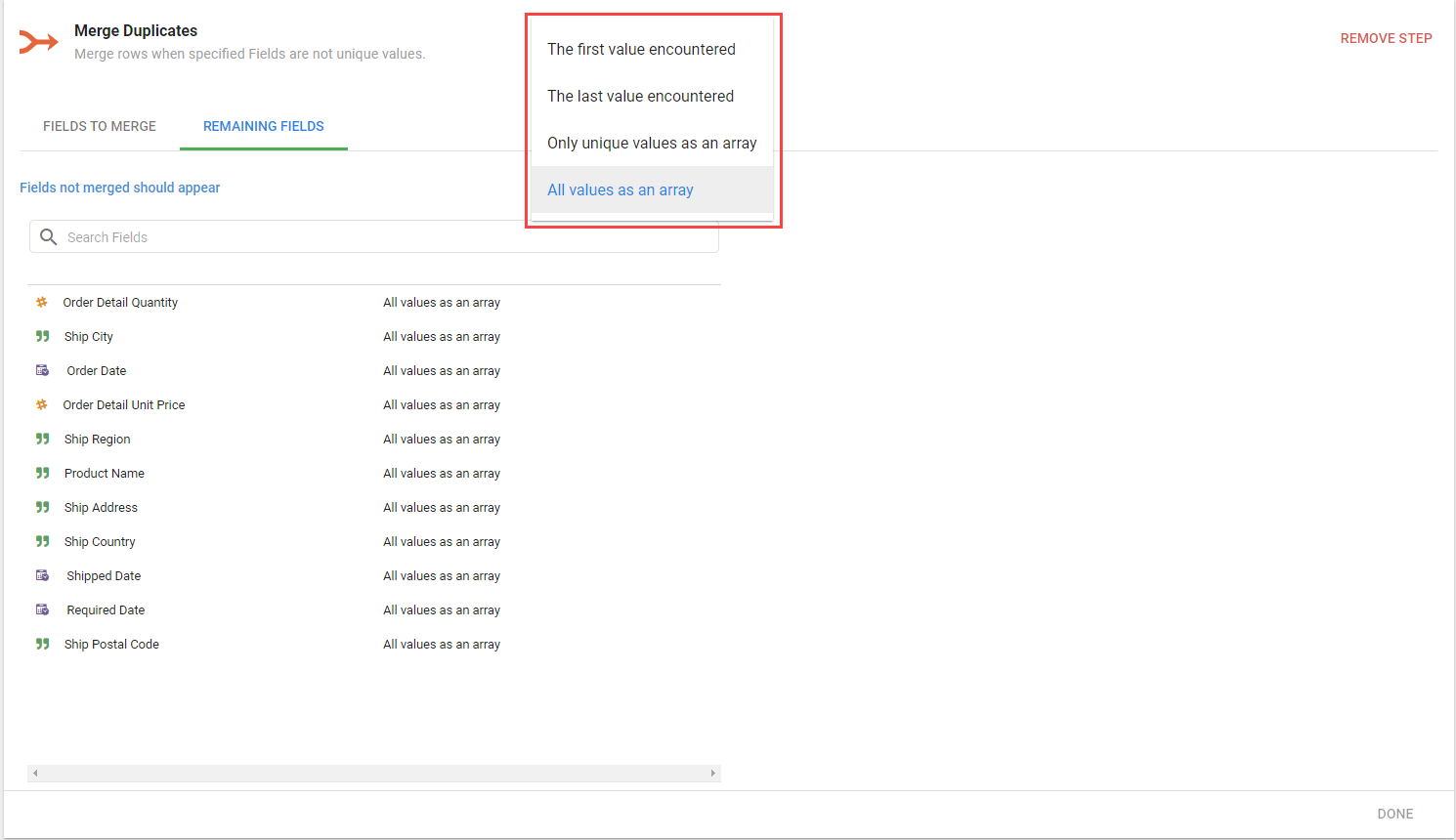
The result is one row per group of duplicates, with the remaining Fields combined as you configured them.

Interaction with Upsert Mode Datasets
If you use Merge Duplicates on an Upsert Mode Dataset, note these interactions:
- The Upsert key must be a scalar value.
- If the Upsert key is not one of the Fields selected for Merge Duplicates, and you leave its merge option as "All values as an array," the Dataset fails to run.
To avoid this, either keep the Upsert key scalar by setting its merge option to "The first value encountered" or "The last value encountered," or include the Upsert key in the merge Fields.
Sort order and merged rows
Merged rows come out ordered by the Fields you merge on. When the Query's Order By starts with one of those Fields, the rows follow that Field's direction, and so on down the Order By for as long as each term names a Field you merge on. The first term that names any other Field ends it, and nothing after that term is honored either. For example, merging on Region and City with an Order By of Region, then Order Date, then City honors only Region: Order Date is not a merge Field, so City, which follows it, is not honored. Any merge Fields left over sort ascending after the honored ones.
An Order By on a Field you do not merge on cannot survive the step: after merging, that Field holds one value per group at best and an array at worst, so there is nothing single to sort by. The Sort option in the results column headers still applies to the final output either way.
For more about Upsert mode Datasets, see Refresh behavior. For what to expect when the data or the configuration does not cooperate, see Merge Duplicates: behavior, errors, and troubleshooting.
Normalize
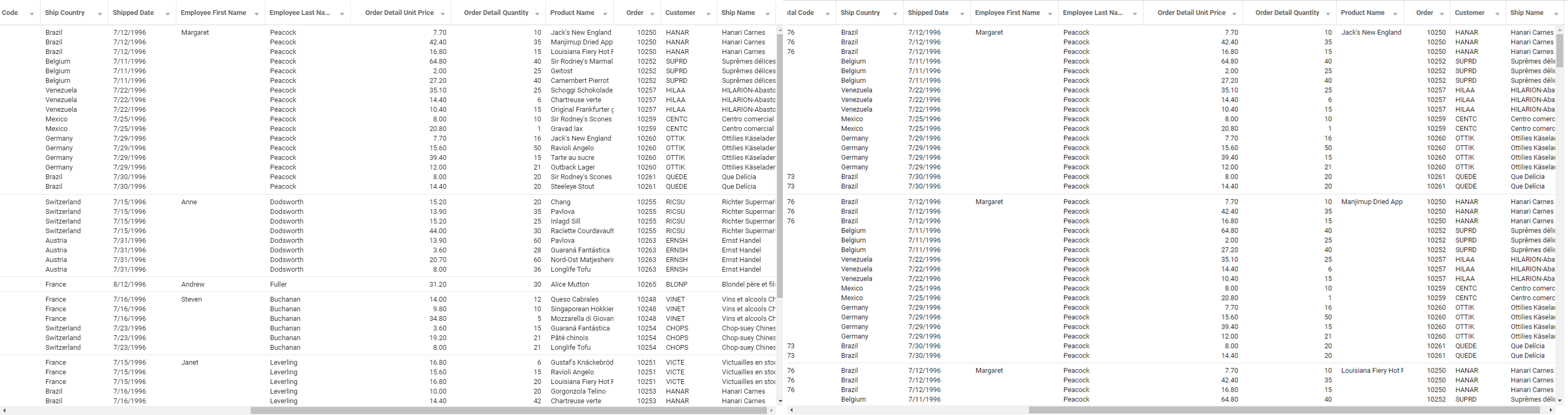
The Normalize Flow Step splits array values into individual rows, one for each value in the array. The Apply criteria to normalized values option evaluates each split row against the original Select Criteria. If enabled, do not change the alias of a Field that is also used in the criteria.
Do not sanitize aliases until after running this Flow Step.
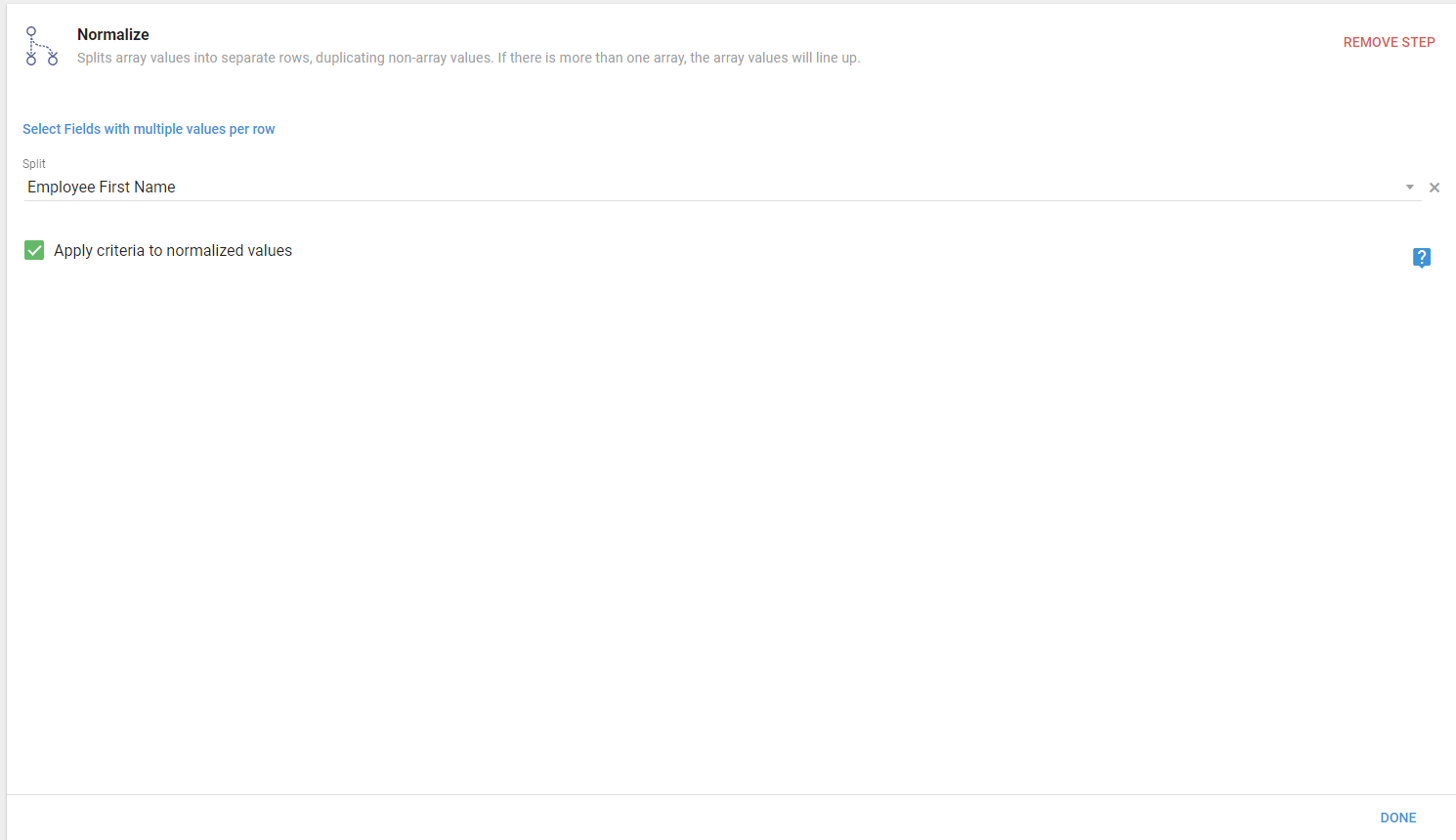
The Normalize Flow Step creates separate rows for each value in an array.
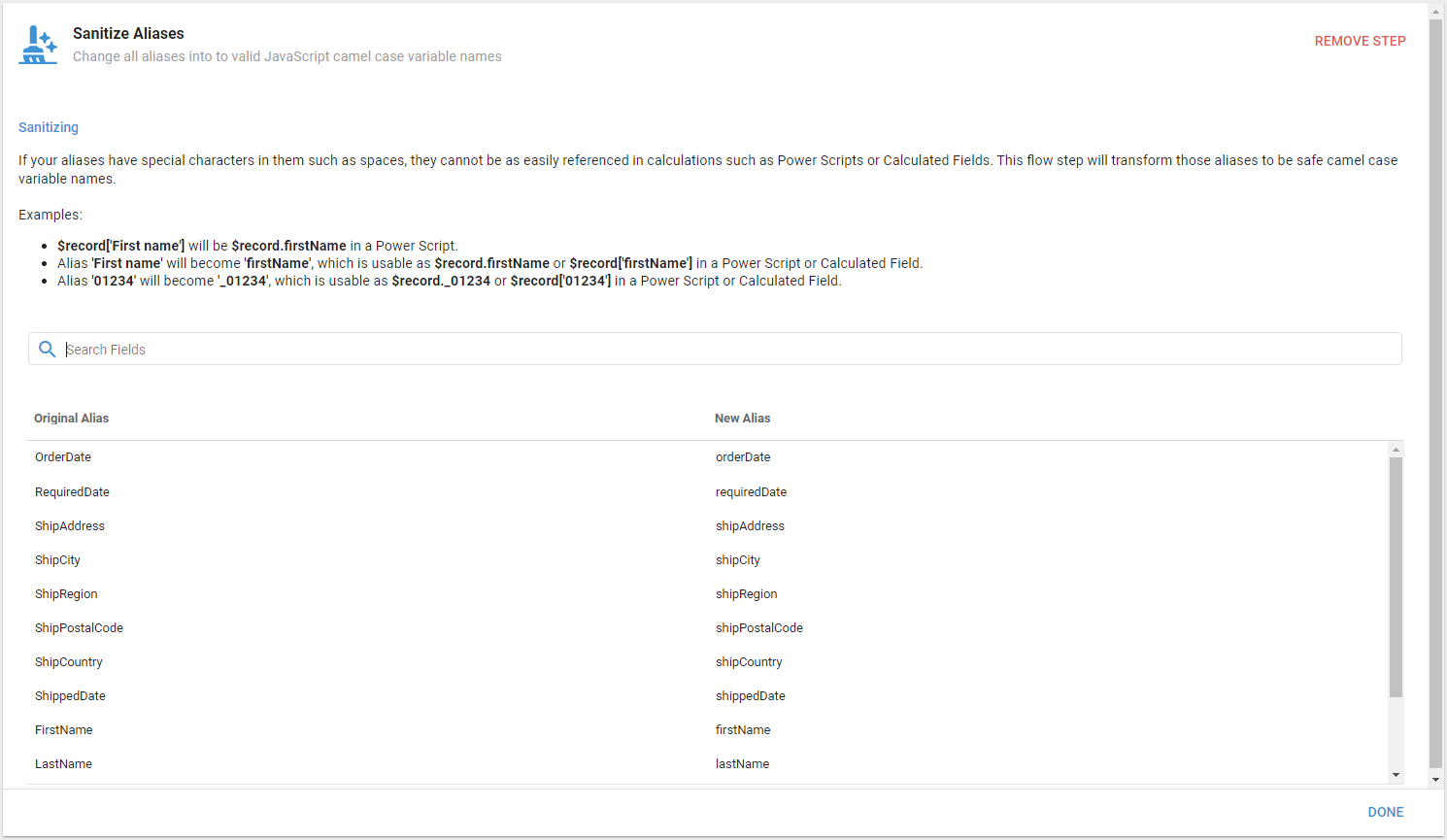
Sanitize Aliases
The Sanitize Aliases Flow Step transforms aliases into safe camelCase variable names. Referencing aliases with special characters such as spaces is difficult in calculations, so this Flow Step makes them easier to use in Power Scripts or Calculated Fields. For example, the alias First Name becomes firstName, usable as $record.firstName in a Power Script or $record['firstName'] in a Calculated Field.