Reserved Power Script variables
Power Scripts are an advanced type of Flow Step, written in JavaScript, that give complete control over a Query's data. This article covers the reserved variables available in Power Scripts that make it easier to shape data. It assumes a basic familiarity with Power Scripts.
$omit()
Calling $omit() excludes the row from the final result set. See the lodash section below for an example.
$record
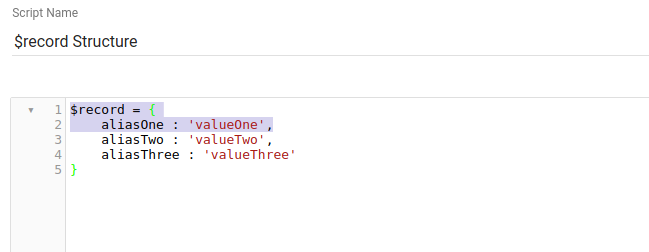
An object containing every value in the row, referenced by Field alias. For example, in a Query with three columns whose aliases are aliasOne, aliasTwo, and aliasThree, with first-row values valueOne, valueTwo, and valueThree, the $record object for the first row looks like this:
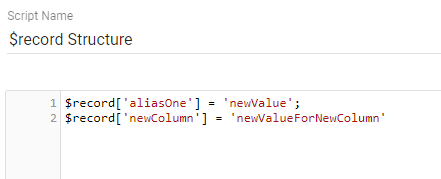
Change a column's value, or add a new column, like this:
$local
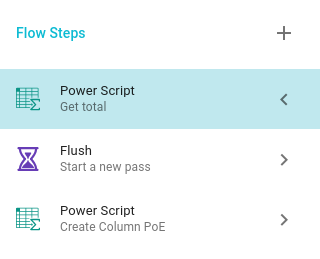
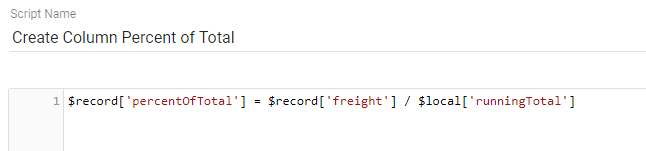
An object that persists across rows. In this example we replicate the Percent of Total Flow Step using Power Scripts and the Flush Flow Step. The setup looks like this:
The first script totals the freight value across every row:
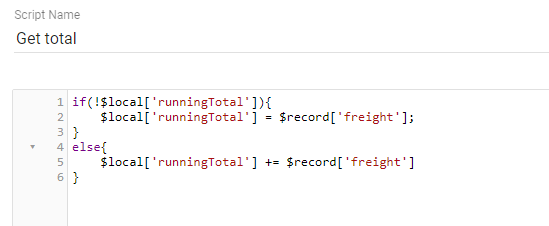
if (!$local['runningTotal']) {
  $local['runningTotal'] = $record['freight'];
} else {
  $local['runningTotal'] += $record['freight'];
}
Then the Flush Flow Step ensures this script has been applied to every record before the percent-of-total calculation runs:
$fields, $query, $datasource
These variables contain information about the underlying properties used to generate the Query:
$fieldsis an object with information likedataType,position,label, andname.$querycontainsparams,dataTypes,fields,options,language,user, andresult.$datasourcecontainsdefaultLinkType,family,languages,naturalId,id,ownerId,name,description,type,scannedAt,schemaUpdatedAt,schemas,source,sourceId,settings,createdAt,updatedAt,fileId, andfeatures.
$field()
Where $fields reads Field metadata, $field() sets it. $field('alias') returns a chainable configurator for the Field with that alias:
$field('orderTotal').label('Order Total');
$field('location').type('geo_point');
$field('customerName').position(0);
The methods can be chained:
$field('location').type('geo_point').label('Coordinates');
| Method | Effect |
|---|---|
.label(text) | Sets the Field's display label |
.type(dataType) | Sets the Field's data type |
.position(n) | Sets the Field's default column position, counting from 0 |
These calls apply to the Query's Field configuration, which the indexer and other consumers read after the result stream finishes. The sample data shown while editing a Query does not reflect them, so run the Query in full to see the change.
The data types accepted by .type() match the entries in a column's Data Type menu:
| Value | Data Type menu |
|---|---|
boolean | Boolean |
date | Date |
date_tz | Timestamp |
double | Decimal Number |
geo_point | Location |
integer | Integer Number |
keyword | Keyword |
keyword_text | Text |
object | Object |
text | Full Text |
time | Time |
Lodash (_)
Lodash is a JavaScript library for manipulating collections (arrays, objects, strings). For example, to exclude rows where a column contains a negative number:
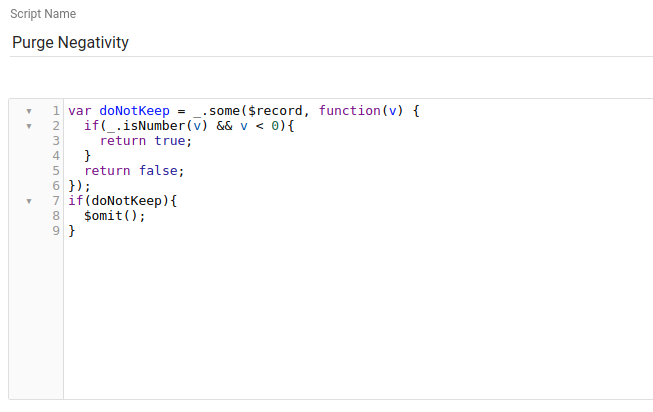
The function above uses the lodash some() method. some() takes a collection as the first argument and a function as the second, iterating through every value and running the function on each until one returns true or there are no more values. For example, for the row below:
| 1 | -22 | 3 | 4 | 5 |
_.some() evaluates the function with 1 first (a number greater than zero, so false), then -22 (less than zero, so true). It stops and returns true, so the if (doNotKeep) check is true and calls $omit(), removing the row. See the lodash documentation for more.
Moment.js (moment)
Moment.js makes creating and manipulating JavaScript dates easy. For example, suppose a Query returns opportunities that are only valid for 30 days. To identify expired opportunities, you would normally group by status, sort by open date, then check whether the value plus 30 days is after the current date. Instead, a quick Power Script can calculate whether a value passed an expiration date and add a new column with the result:
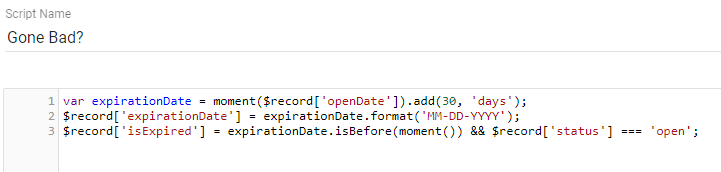
This script creates a date from the openDate value, adds 30 days, stores it in a new expirationDate Field, and adds an isExpired Field that is true when the expiration date is before now and the status is open. See the moment documentation for more.