Prompts on a schedule
Schedule Prompts turns a chat into a standing question. Describe what you want and when, the way you'd say it out loud, and Informer runs the prompt on schedule, with the answer waiting in the chat and, when you ask for it, an email or a notification on your phone.
Setting one up
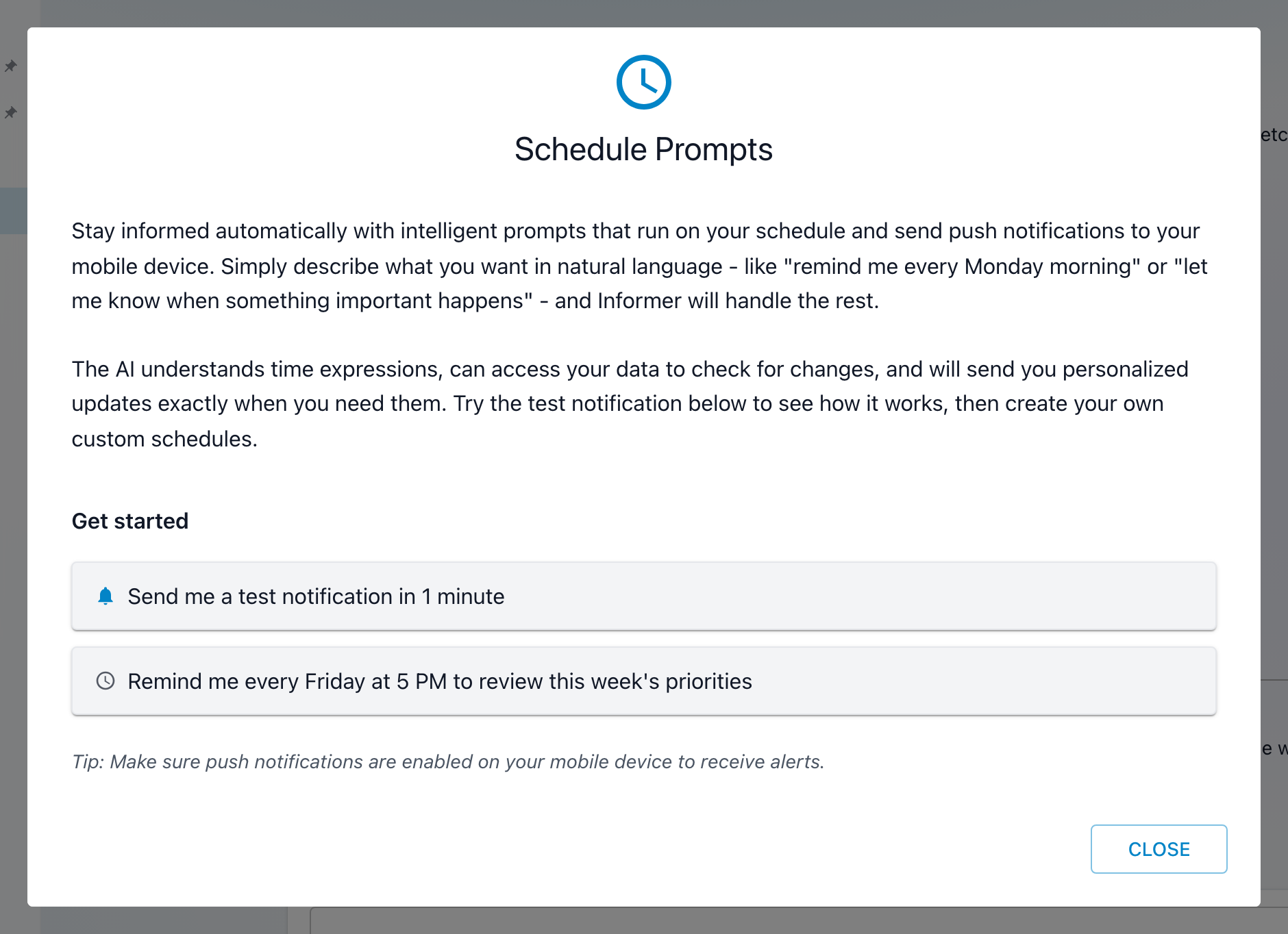
Open Settings & Tools and choose Schedule. There's no cron syntax to learn; the Schedule Prompts dialog's own examples, under Get started, are the best instructions. Click one to send it as your message, or write your own:
- "Send a test notification to my phone in 1 minute", try this one first to see the whole loop work.
- "Every Friday at 5 PM, remind me by email to review this week's priorities"
- "Every Monday at 8 AM, email me which of my datasets have no records"
Say how each run should reach you, because a run only uses the channel its prompt names: email goes to the address on your account and needs no device, while a notification needs the Informer GO app on a phone or tablet signed in to this Informer. With a Dataset attached to the chat, the examples switch to that data: a weekday digest of the biggest changes, a weekly comparison, a chart of daily volume, or an hourly watch that notifies your phone the first time new records appear and then stops.
Once saved, a Scheduled chip appears on the conversation. Click it to see the schedule in plain words (a one-time run reads "Once on" its date and time) along with the next run, so you can confirm Informer heard what you meant. Schedules run in your time zone, not the server's.
What happens on each run
At the scheduled time, your prompt is posted into the chat as a new message from you, and the AI answers it right there, with the whole conversation as context. That last part is what makes scheduled prompts more than a reminder app:
- The chat's context applies. A scheduled prompt in a chat with your sales Dataset attached can check the data each run: "every Monday at 8, summarize last week's orders and flag anything unusual".
- The AI knows the run history, so "what changed since last time" means something.
- The answer lands in the chat history. If the prompt asks to email you or to notify your phone, that goes out too; if the channel you named fails (no email address on your account, no device signed in), the run tries the other one and says which failed and why.
Email goes to the address on your account and needs no device. Device notifications need the Informer GO app on a phone or tablet, signed in to this Informer. Without either, the schedule still runs; the answers simply wait in the chat.
One-time prompts
Schedules don't have to recur. Ask for something once ("remind me tomorrow at 9 by email to send the renewal quote") and it's saved as a one-time schedule: it runs at that moment and never again, and the schedule reads "No further runs" afterwards, no cleanup needed. A recurring schedule can also stop itself once your request is satisfied ("…the first time new records appear, then stop").
Managing a schedule
- Scheduled chats show an alarm icon in your chat list; its tooltip shows the next run time.
- The schedule belongs to the chat. Open the chat and click its Scheduled chip (or choose Schedule again) to open Edit Scheduled Prompt, where you can change the prompt, see the next run, or Delete the schedule.
- Schedule is offered wherever a chat can carry one: chats in Informer GO, and in classic Informer the Informer AI dialog, an Assistant's Chat page, and a Library's chat.
- Administrators will also see scheduled prompts in Informer's Jobs area as Scheduled Chat jobs. They're managed from the chat itself, which is why the Jobs screen doesn't offer a way to create one.
Troubleshooting
- Nothing arrived. Check the chat first: if the answer is there, the run happened, so make sure the prompt actually asks to email you or notify your phone, and that the channel exists (an email address on your account, or a phone signed in to the Informer GO app). If there's no answer either, check the alarm icon's tooltip for the next run time; the schedule may not have fired yet.
- The chat says a run "could not complete" or "never happened". A failed run leaves that note in the chat, with the reason when there is one to show; a one-time run whose moment passed before it could run (an outage, a credit cutoff) says so instead of running late. The job's run history has the details.
- It ran at the wrong hour. Schedules use the time zone you set them in; worth a second look after travel or a daylight-saving change.
- "This conversation has not been saved yet, so it cannot carry a schedule." A brand-new chat is saved with its first message; send one, then ask again.
- It keeps running and I'm done with it. Open the chat, click the Scheduled chip, and Delete the schedule. Deleting the schedule keeps the chat and its history.