Website Search
The Website Search Skill lets an Assistant search a website of your choosing, such as your organization's public site or its documentation, through a Google Programmable Search Engine you set up. The Assistant sends its query to Google, gets back the matching pages, and answers from them.
Why use it
Knowledge is for content you can hand to the Assistant: Datasets, files, Libraries. A website is different: it changes without you, it may run to thousands of pages, and it may belong to another team. Website Search leaves the site where it is and lets the Assistant look things up there on demand, so a "Campus Guide" Assistant can answer "when does the library close on Sundays?" from the live opening-hours page rather than from a copy you uploaded last term.
Because the search engine covers only the sites you list, the Assistant is not wandering the open web. For that, see Web Search, which is a chat feature rather than a Skill.
Setting up the search engine
The Skill needs two things from Google: the id of a Programmable Search Engine that covers your site, and an API key allowed to use the Custom Search API. The panel walks through it; in short:
- Create the search engine
At programmablesearchengine.google.com, add a new search engine, give it a name, and enter the sites or pages it should gather information from.
- Copy its Search Engine ID
Open the new engine's Customize page and copy its search engine ID.
- Create an API key
In the Google Cloud Console, create or select a project, go to APIs and Services then Library, and enable the Custom Search API. Under Credentials, choose Create Credentials then API Key. That key is the Secret the Skill uses.
Adding the Skill
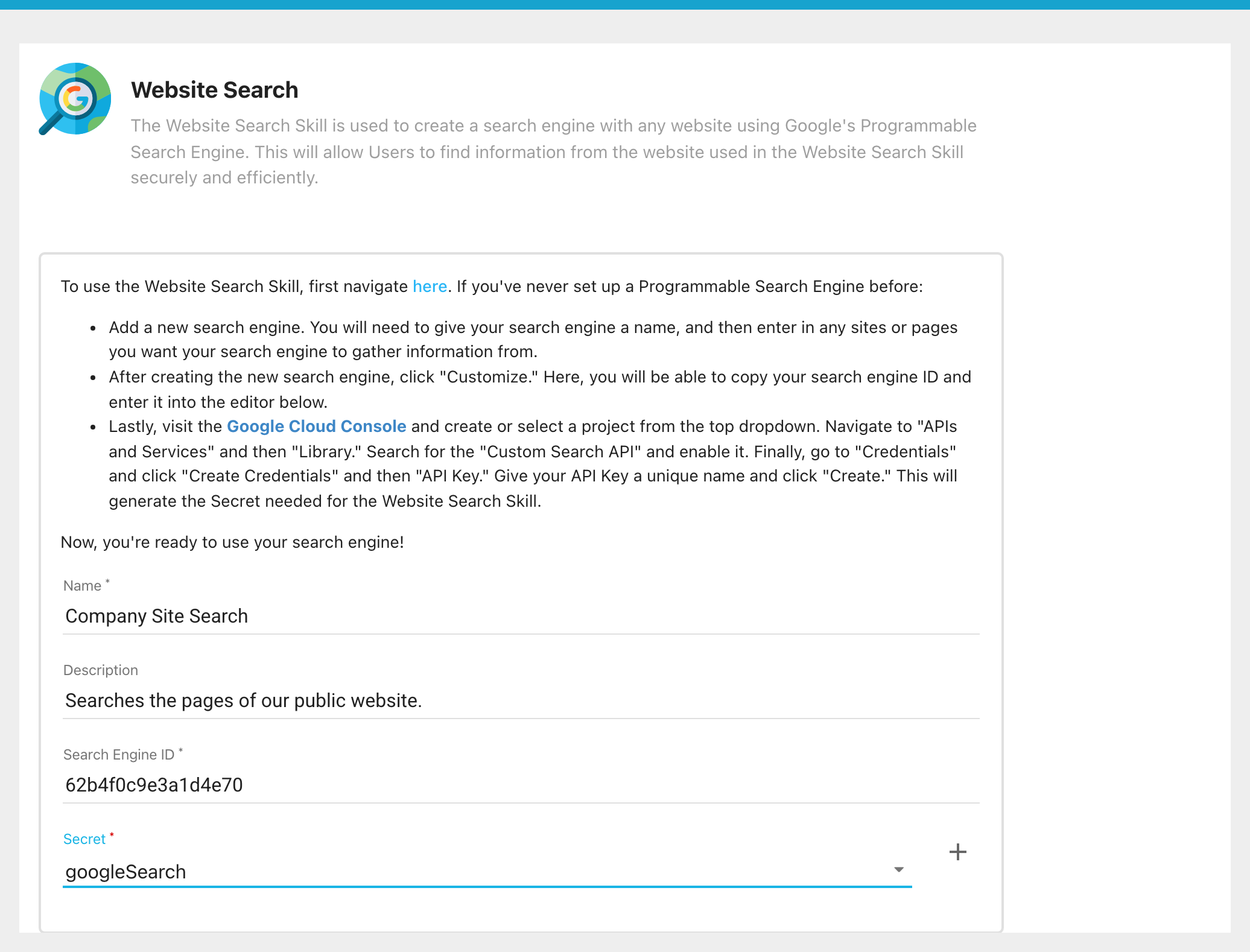
Click the + next to Skills and select Website Search. The panel has four fields:
- Name (required): what the Assistant calls the tool. Pick something that says what it searches, such as
Company Site Search. The Assistant decides on its own when a Skill fits a question, and the name is part of that decision. - Description: a sentence on what the site covers, which helps the Assistant choose it for the right questions.
- Search Engine ID (required): the id you copied from Google.
- Secret (required): the Secret holding the API key. The dropdown lists the Assistant's Secrets, and the + beside it opens the Add Secret dialog so you can add the key without leaving the panel. The key is encrypted and cannot be viewed again, only replaced.
Click Done, then Save the Assistant.
How a search runs
When a question calls for it, the Assistant calls the Skill with one parameter, the query. Informer sends that query to Google's Custom Search API together with your Search Engine ID and the decrypted key, and hands the results back to the Assistant as Google returns them. The Assistant composes its answer from the pages it finds. The tool call appears in the reply, and View Details shows the query it chose and the raw results.
The Skill references its Secret by key, so it keeps working if you replace the key's value. If you delete the Secret instead, the panel's Secret field reads Select Secret again until you choose another, and until then any search fails with an error saying the Skill references a secret that no longer exists.
Doing it by hand
The API Request Skill's websiteSearch example calls the same Google API with a script you write yourself. Use that route only when you need something this Skill does not do, such as passing extra search parameters or reshaping the results with a Post Script.
Troubleshooting
- No results, or an error from Google. Confirm the Custom Search API is enabled for the project the key belongs to. View Details on the tool call shows Google's response.
- Results come from the wrong site. The search engine, not the Skill, decides which sites are covered; change it at Google.
- "references a secret that no longer exists". The Secret was deleted. Open the Skill, choose a Secret (or add one with +), and Save.