Checking Log Messages
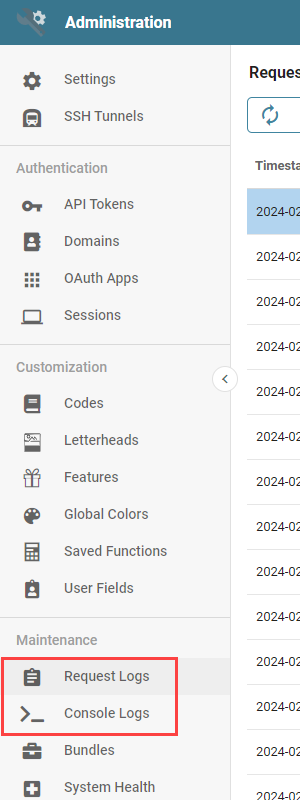
Navigate to the Request or Console logs from the Administration page and click either Request Logs or Console Logs in the Maintenance section of the navigation panel. Request Logs are the recent API requests made on the system, with detailed information on each one. Console Logs are a live feed of the API requests Informer makes in real time.
Request Logs
The Request Log listing page shows each API request Informer makes, with information on each one. Successful requests are black on the listing page; unsuccessful requests are red. The Route column shows the actual path that was hit (for example /api/users/andrea), while the Routes filter groups requests by their route template. Left of the search bar are controls to:
- Refresh: Updates the log list.
- Clear: Removes all log entries from the list.
- Download: A menu with Download Full Log and Download View as CSV.
- Settings: Sets the logging parameters and the level of detail. See Changing Log Settings.
- Search Bar: Search through the logs for keywords to find specific requests.

Filtering logs
Filters for the Request Logs are found to the right of the search bar:
- Areas: Filters the logs by the underlying area of the application, for instance Browser client or System application logic and events. This dropdown appears only when the listed entries span more than one area.
- User Address: Filters by the IP address of the request. The current User's IP address is listed first, preceded by "Yours."
- Routes: Filters for specific routes or API requests. Useful to locate parts of the Informer API that may have issues.
- Methods: Filter by the API method used. See HTTP request methods.
- Status: Filter by specific HTTP status codes. Useful to filter out successful 200 codes. See HTTP response status codes.
- Result: Filter by the final result of the request, derived from its status code: Success, Cached (a 304 response), Redirection, Client error, or Server error.
- Tags: Filter by tags Informer automatically assigns to requests. These differ from the User-assigned Tags for content.

Log entry details
Click the info icon at the end of a row, or double-click the row, to open the Log Entry dialog. Its header shows the HTTP method, the path that was hit, and a status badge with the status code and result. Below the header:

- Request
- Timestamp: When the API call occurred.
- Response Time: The amount of time the request took to process, in milliseconds.
- Route: The route template the call matched (API requests only).
- Instance: Build information for the Informer instance.
- Source
- Referer: The specific URL in Informer that made the API call.
- User Address: The IP address of the User that made the call.
- User Agent: Browser information of the User that made the call.
- Tags: The tags Informer assigned to the request, the same values the Tags filter uses.
- Timeline: Every log entry recorded while the request ran, in order, each with its offset in milliseconds from the earliest entry (
+0ms,+5ms, and so on). Error entries are highlighted and include their full stack trace. Each entry has a clipboard icon to copy just that entry, and the section header has one to copy the whole timeline.
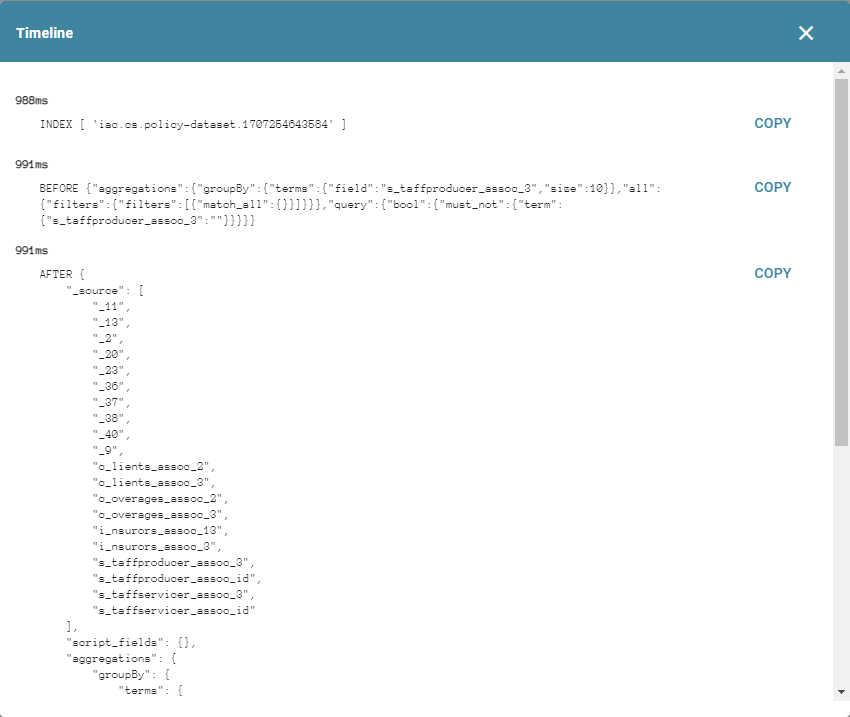
Download at the bottom of the dialog saves the entire entry (summary, source, tags, and timeline) as a plain-text file; Done closes it.
Console Logs
Console Logs are a live feed of the API requests Informer is making. The Console Log options function the same as the Request Log options, with two additions: a Row limit button that opens the Console Max Rows dialog, where Max row count sets how many entries the console keeps on screen, and a Pause/Play button. Click Pause to stop the live feed of requests, or Play to resume. The bottom of the page indicates whether the feed is live-scrolling or paused.